
Web Automation
Guides for authoring, running and analysing tests across web automation, API and performance — plus setup, collaboration and release notes.
Test Run Configs
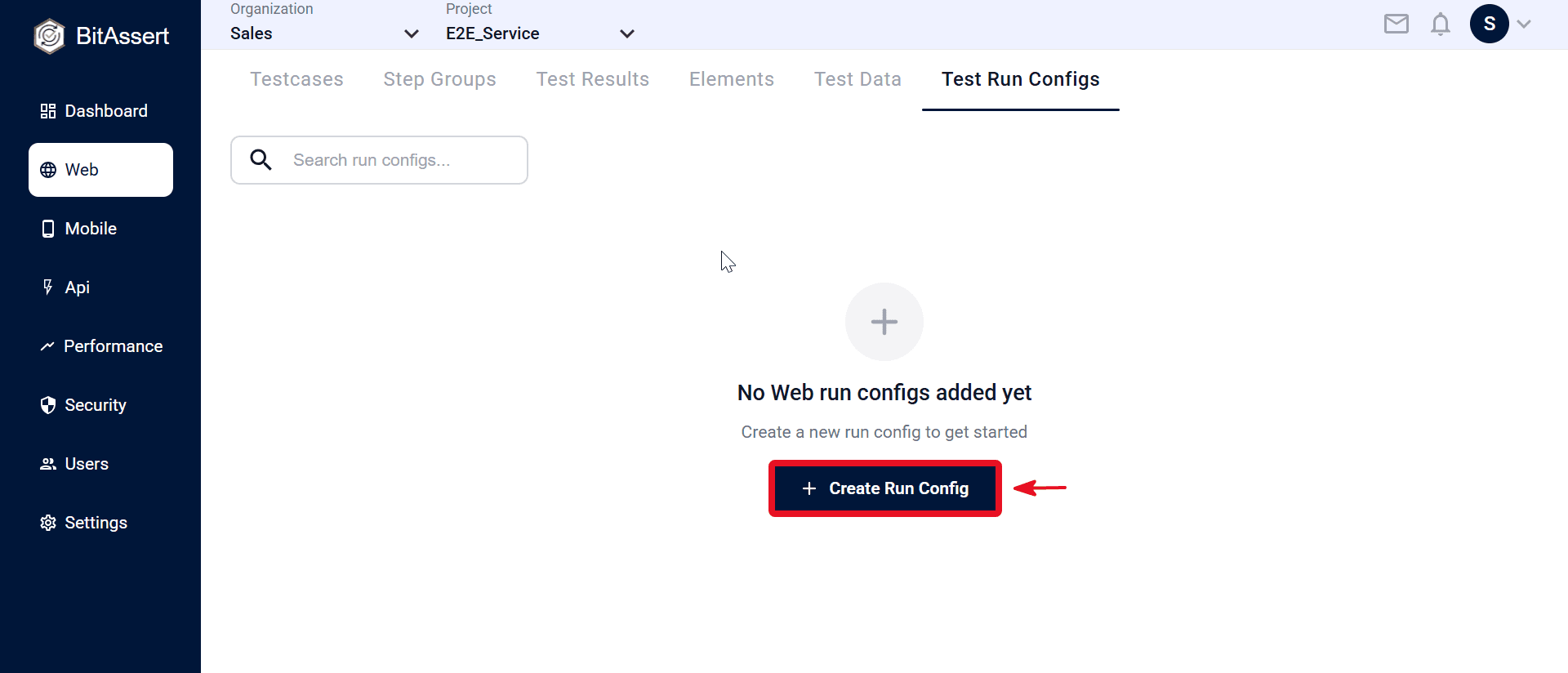
Test Run Configs define how a Web test runs in the cloud. They control browser and OS settings, timeouts, delays, screenshot capture, and what happens when a step fails. Create and manage them per project from Web → Test Run Configs. When you start a cloud run, select a config together with a run tag.
Test Run Config settings
Note:
- Test Run Configs are used for Cloud runs only. They are not used for Local Agent runs.
- At least one Web testcase exists if you plan to run immediately after creating a config.
Create a Test Run Config
- Go to Web > Test Run Configs and click Create.
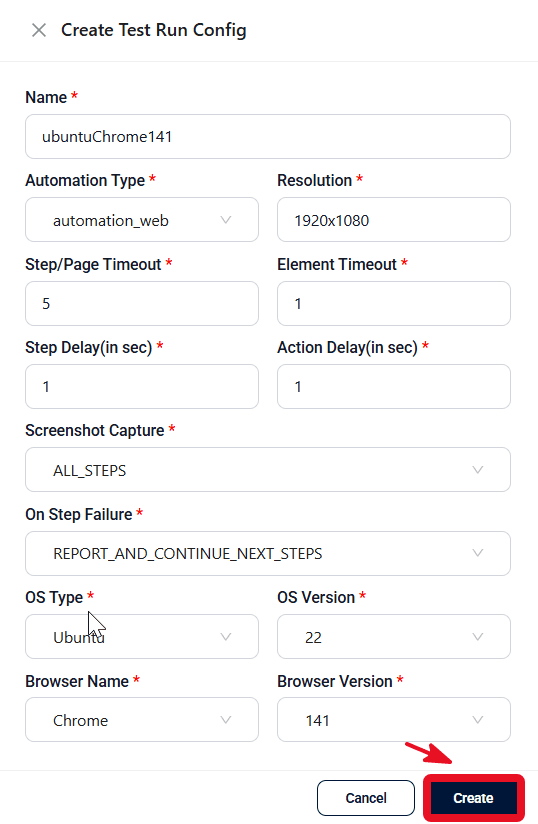
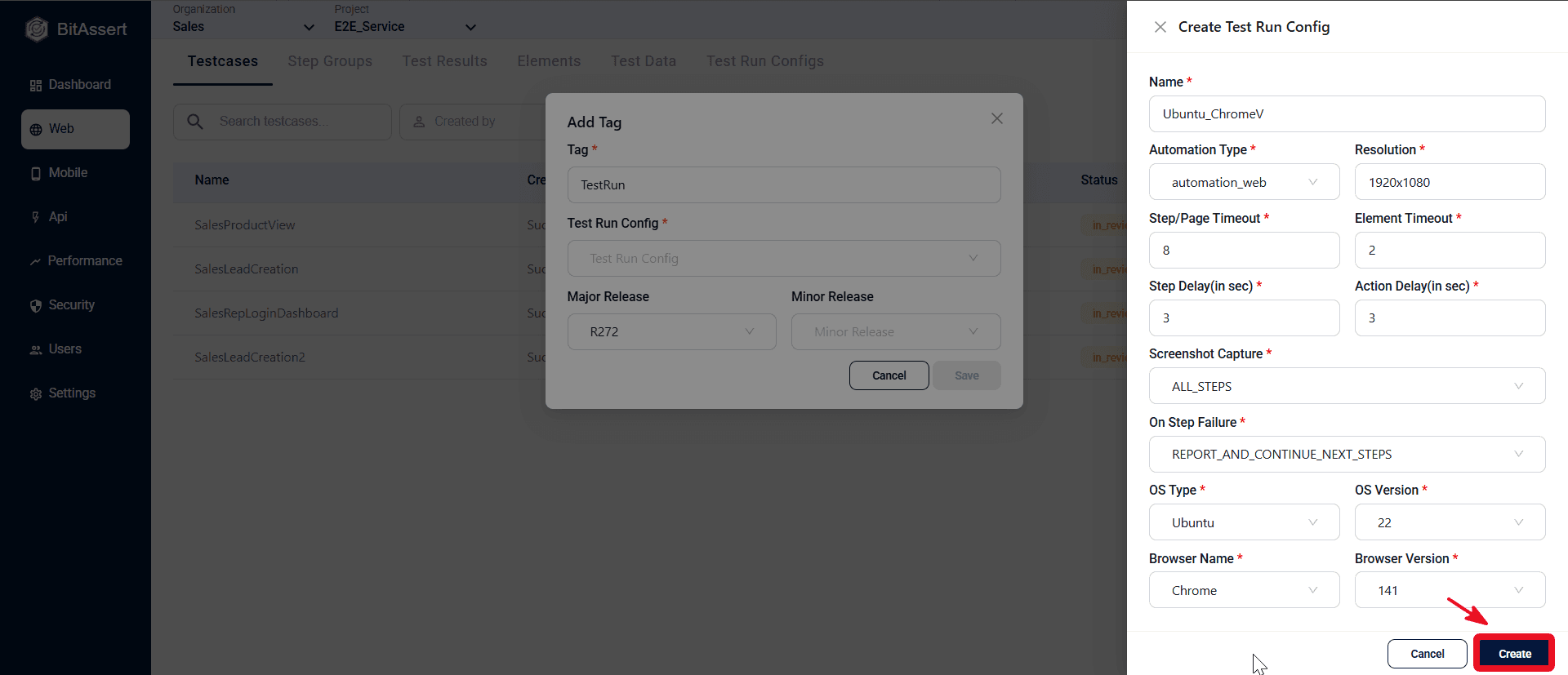
- In the Create Test Run Config modal, set Name (for example ubuntuChrome141), Automation Type automation_web, Resolution 1920x1080, timeouts 5 / 1, delays 1 / 1, OS Ubuntu 22, and browser Chrome 141.
- Click Create to store the config.
How configs are used
Select a saved config when you run via Cloud (tag + config + optional release). See for the full run workflow.
Create from the run dialog
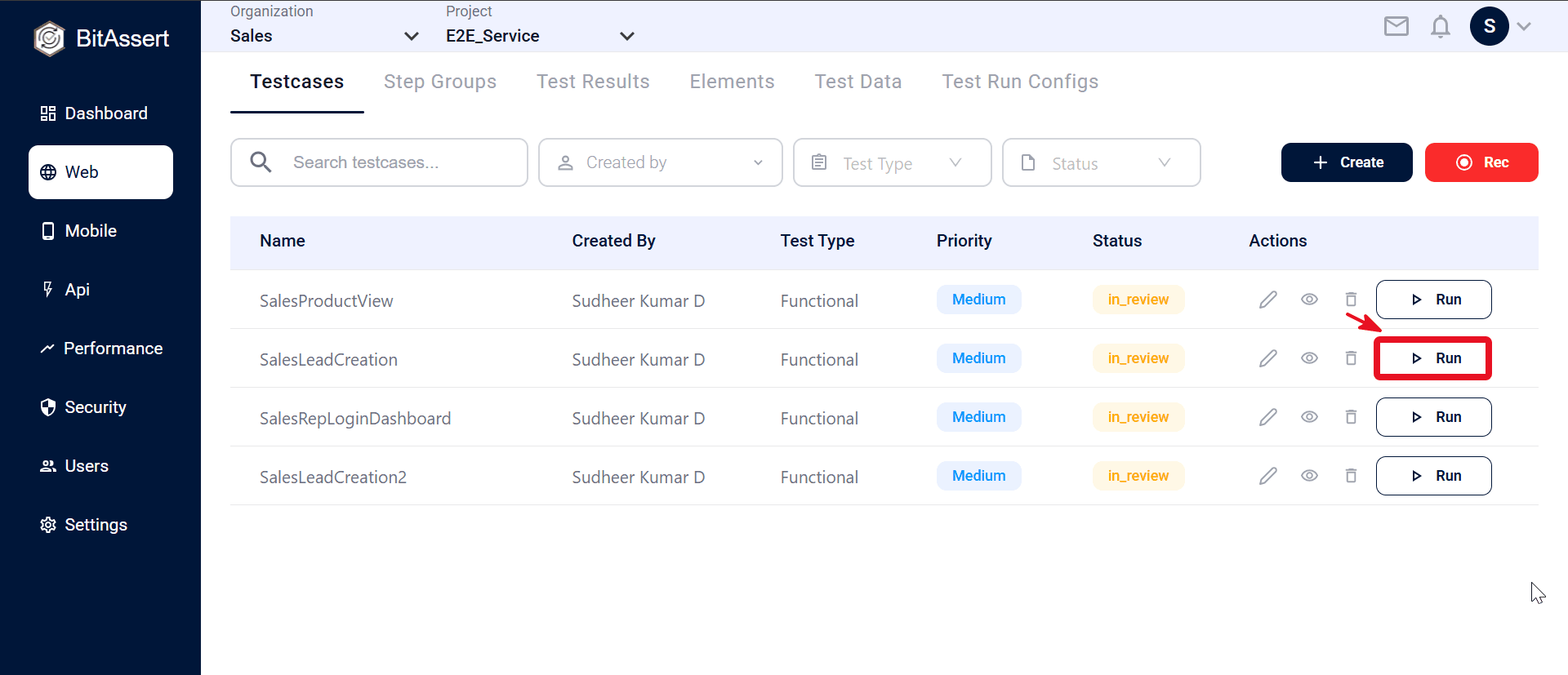
- Go to Web > Testcases and click Run on a testcase (for example SalesLeadCreation) in the Actions column.
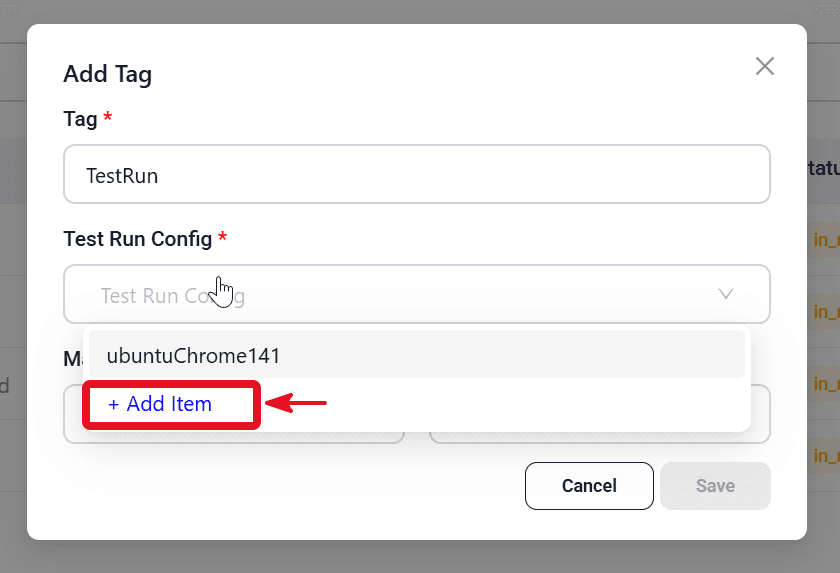
- In the Test Run Config field, click + Add Item.
- Enter config details (for example ubuntuChrome141, automation_web, 1920x1080, OS Ubuntu 22, browser Chrome 141) and click Create.
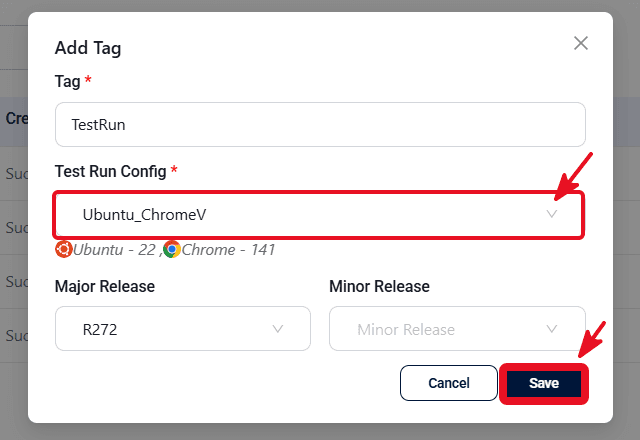
- In the Add Tag dialog, enter a Tag (for example TestRun), select the Test Run Config (for example Ubuntu_ChromeV), and optionally choose Major Release and Minor Release.
- Click Save to start the cloud execution.
Practical tips
- Create separate configs for different environments (for example, Chrome on Windows, Firefox on macOS) so teams can run the same tests on the right setup without changing the testcase.
- Use clear config names that include browser and OS so runners pick the right one quickly.
- Review timeout and screenshot settings before running long or flaky flows in the cloud.
Expected outcome
Reusable Web Test Run Configs are saved in the project and available when starting cloud runs. Each config captures the browser, OS, timing, screenshot, and failure settings needed for consistent cloud execution.