
Web Automation
Guides for authoring, running and analysing tests across web automation, API and performance — plus setup, collaboration and release notes.
Test Data
The Test Data section lets you manage reusable input values for your project. Store fixed values in data sets or generate dynamic values with random variables. Test data can be referenced in testcases, step groups, and elements during test design and execution.
Test Data types
Data Sets
Data sets store fixed, reusable values in a table you manage under Test Data → Data Sets. Create rows and columns manually or import from CSV. Reference a column in testcases, step groups, and elements as @{columnName}.
workflow
- Go to Web > Test Data and open the Data Sets tab.
- Click Create to add a new data set manually, or Import CSV to upload data from a file.
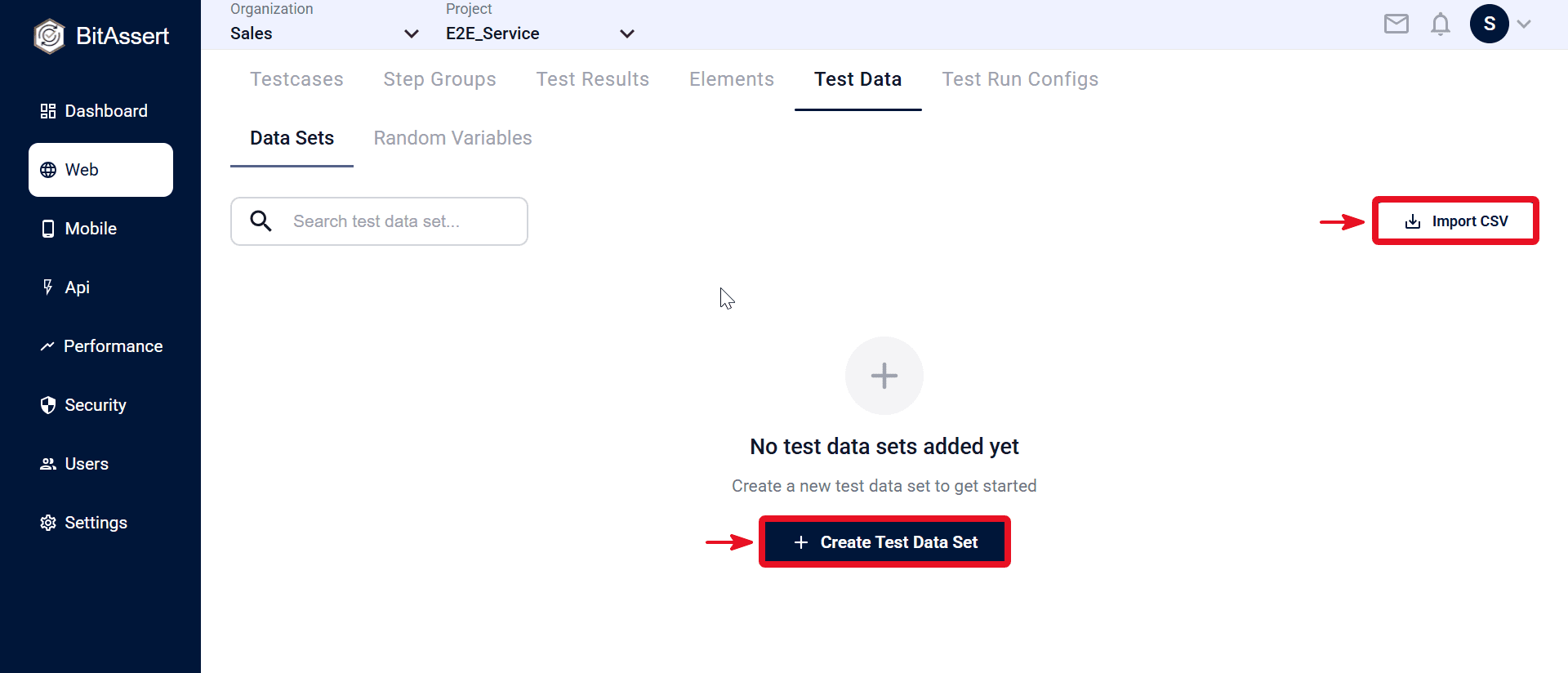
- Open the data set editor. Enter the Name (for example TrainingSet).
- In the table, use + or Delete in the column header to add or remove columns (for example user_id, user_name).
- Use the row + or Delete icons to add or remove rows, then enter values in each cell.
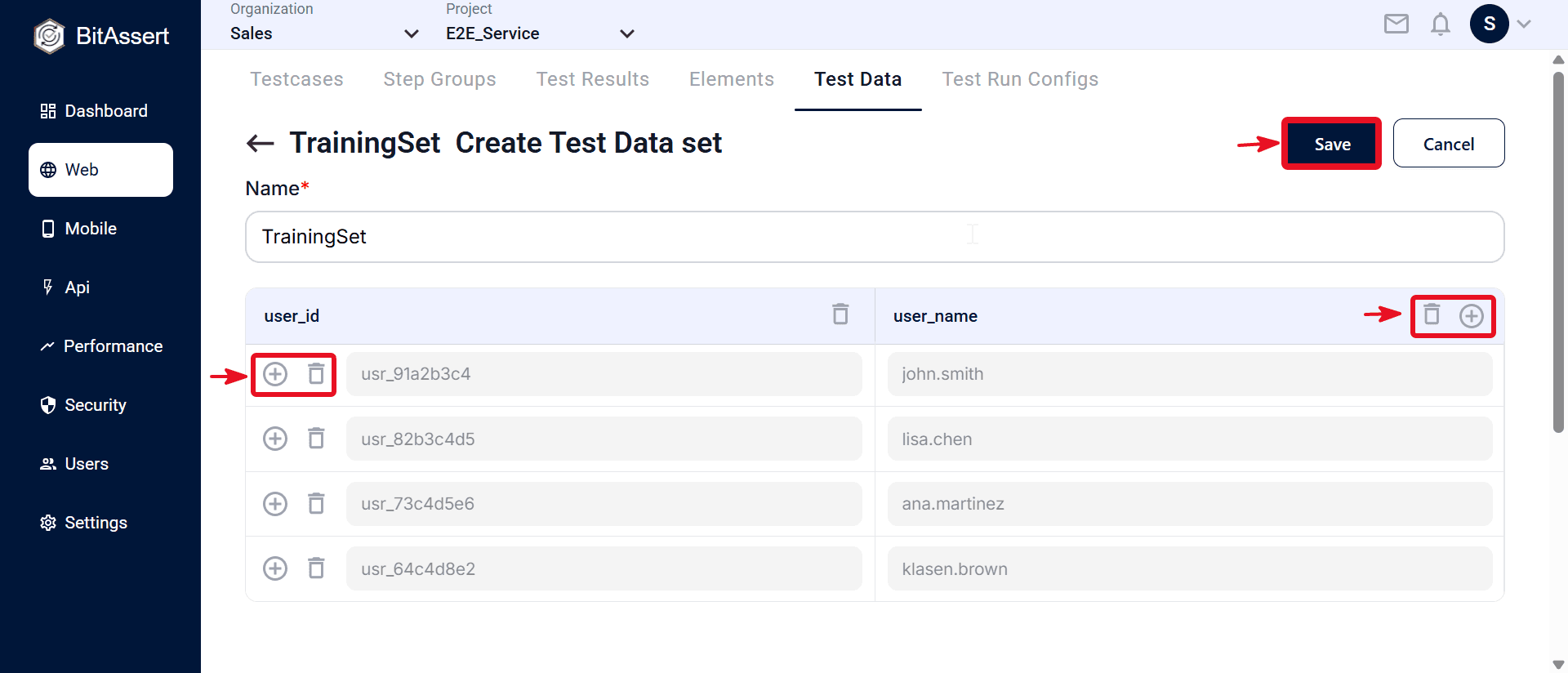
- Click Save to store the data set.
Random Variables
Random variables are project-defined generators that produce new values at run time — for example dates, letters, or numbers. Configure them in Test Data → Random Variables using functions such as date(), alpha(), and range(). Reference them as ${__variableName}.
workflow
- In Test Data, open the Random Variables tab.
- Click Create to open the Create New Random Variable modal.
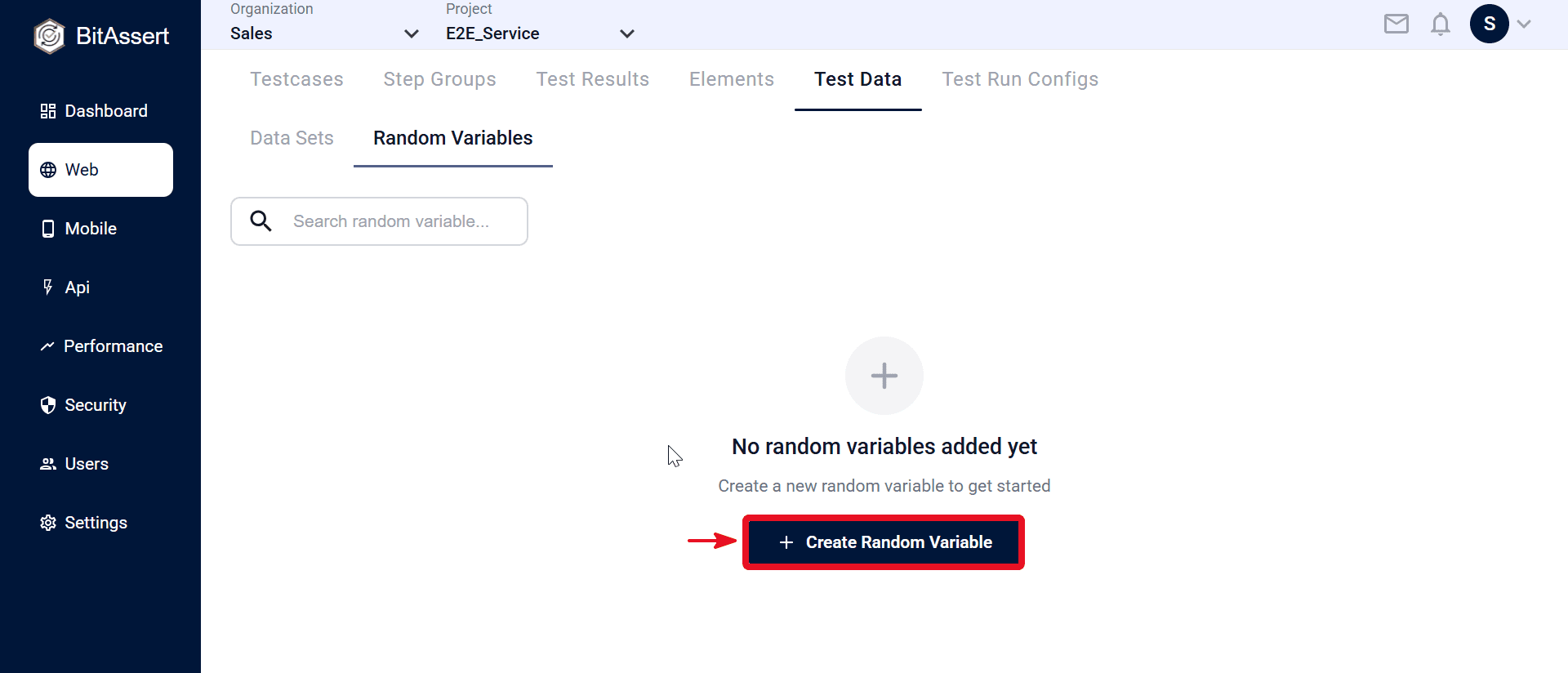
- Enter RandomVariable Name (for example ScheduledDate).
- Under Functions, select a function (for example date(), alpha(), range(), or num()).
- Configure function settings in the right panel. For date(), set Format (for example MM/DD/YY) and Offset (Days) (for example 3), then review Example Output.
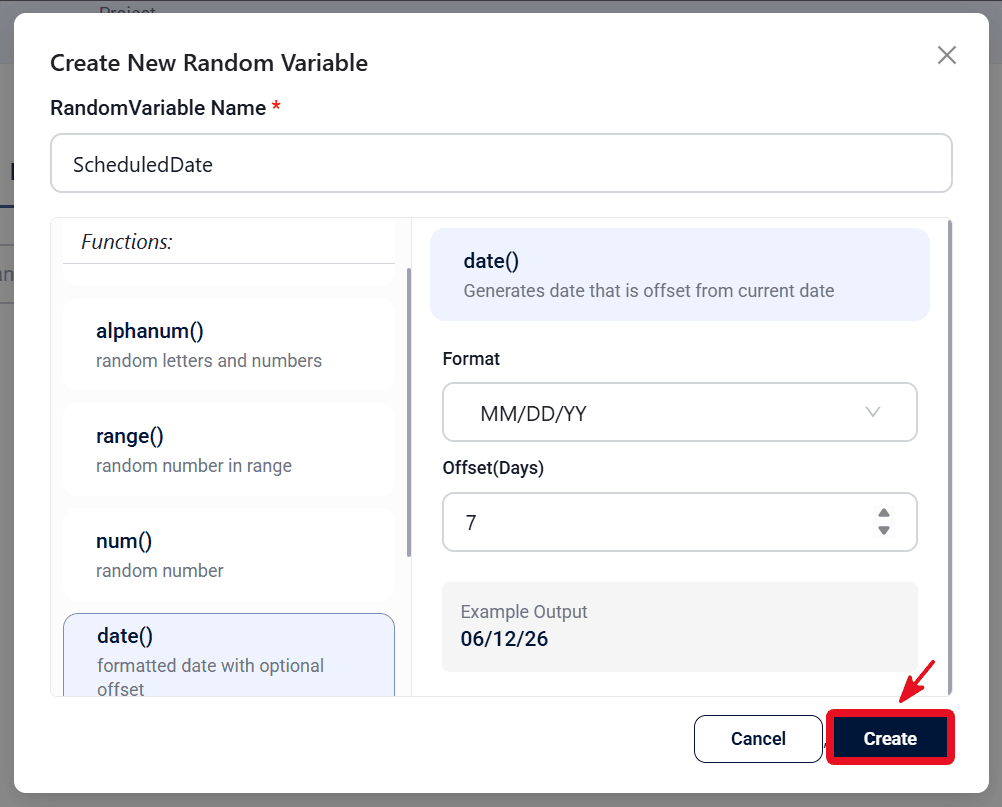
- Click Create to save the random variable.
- Use Edit or Delete to maintain variables. A variable cannot be deleted while it is still referenced elsewhere.
Runtime Variables
Runtime variables hold values produced during a test run, typically captured from an API response using Extract Response on a testcase step. They are referenced as ${variableName} and are available for the remainder of that testcase run after the extracting step completes.
Prerequisites
Before you begin, you should know how to set up a basic API testcase:
- An API testcase exists with at least one HTTP step.
- You have reviewed — create steps, set method and URL, and use Send to verify a response.
- is connected if you plan to use Run on steps.
Correlation
Correlation passes a value from one step into a later step in the same flow — for example an id from a list response used in the next request URL, header, or body. Configure extraction on the source step first; downstream steps then consume the stored runtime variable.
Correlation workflow
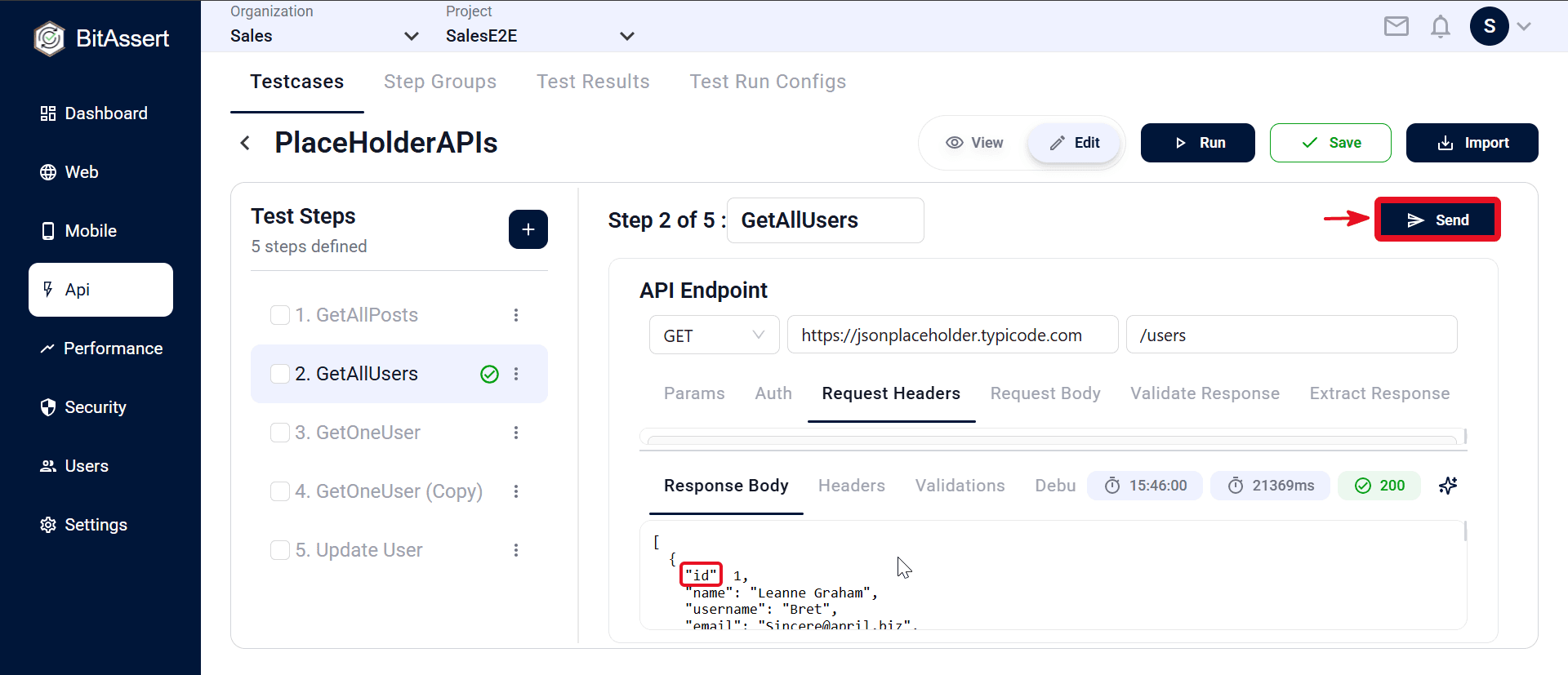
- In the PlaceHolderAPIs testcase, select step GetAllUsers — GET https://jsonplaceholder.typicode.com/users.
- Click Send and confirm the response body returns a list of users with id fields.
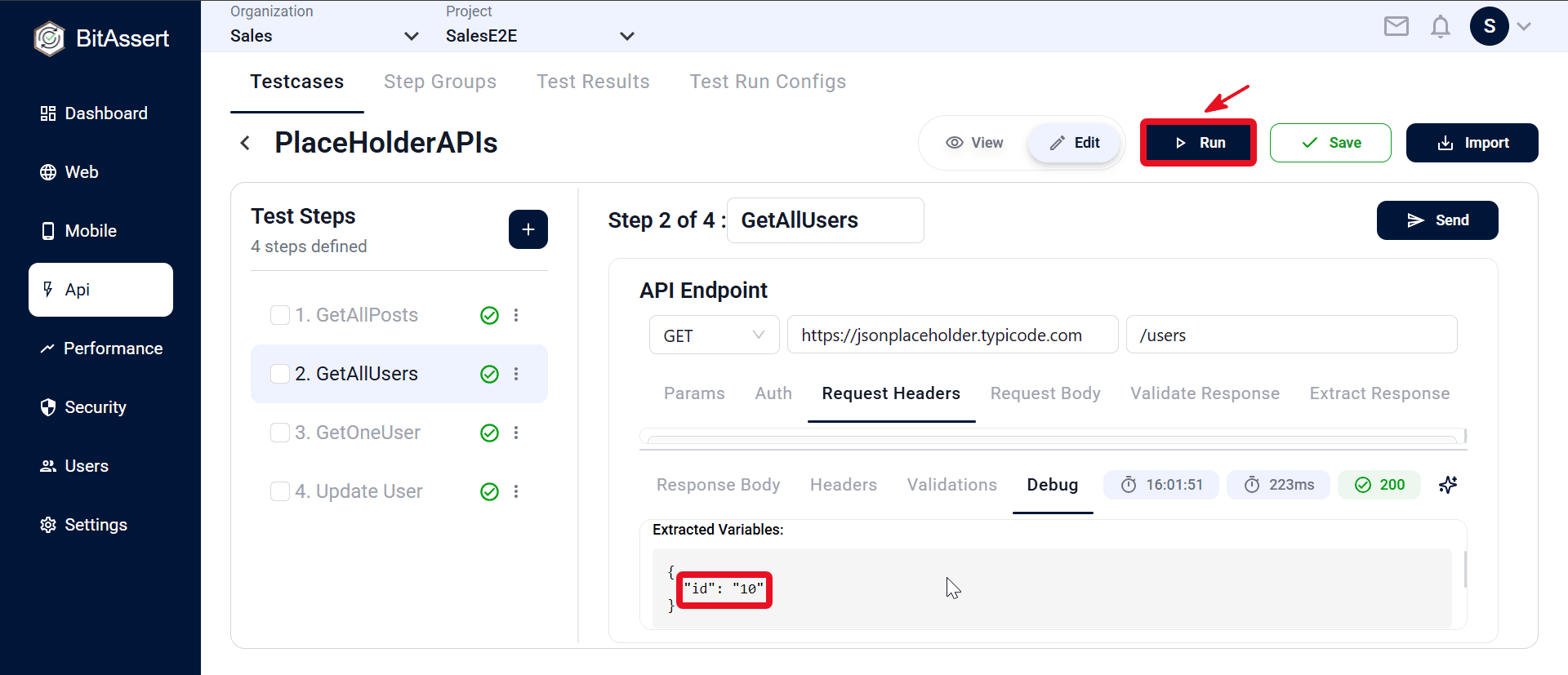
- Click Run on GetAllUsers. In the bottom panel, open the Debug tab and confirm Extracted Variables shows id with the captured value (for example 10).
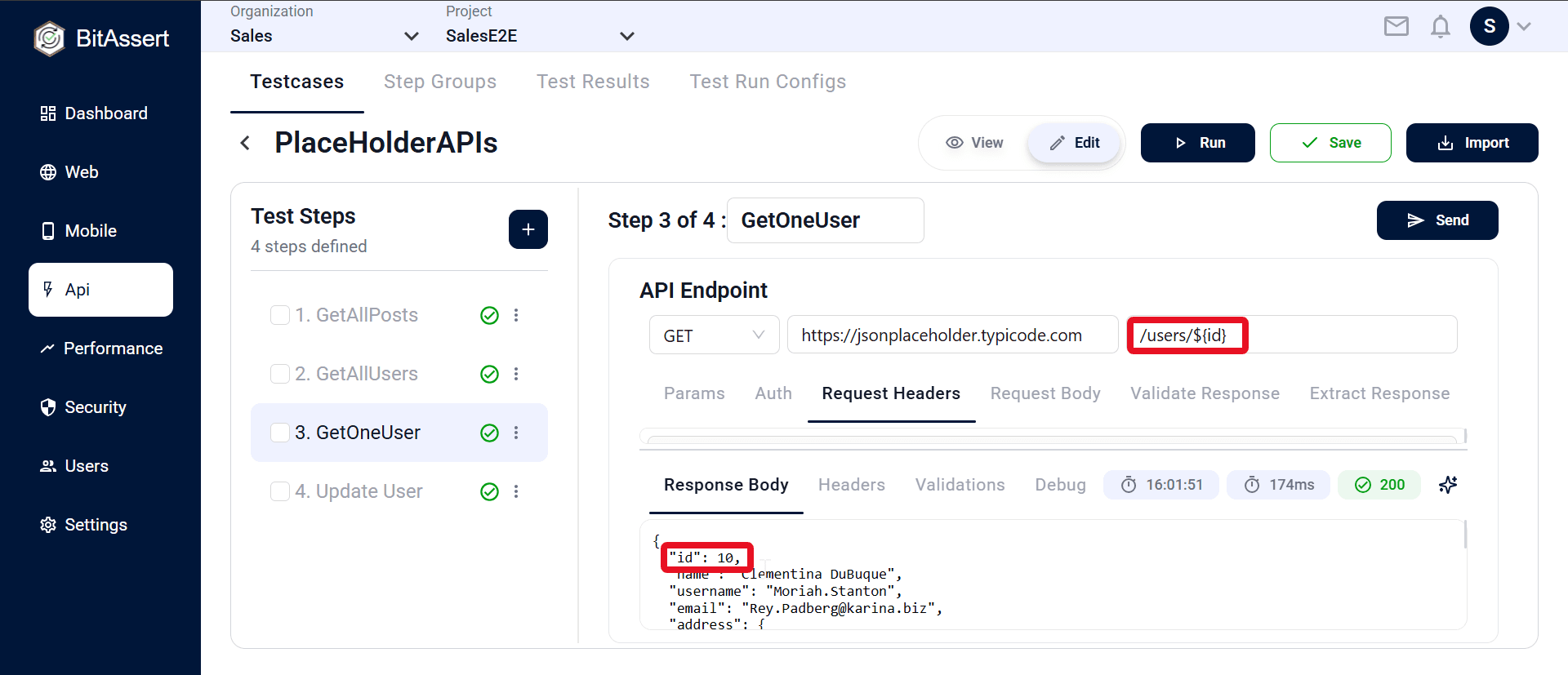
- Author the next step GetOneUser with path /users/${id} (or the full URL with the variable in the path).
- Run the testcase (Local Agent or Cloud). GetAllUsers runs first and stores id; GetOneUser calls /users/${id} with the extracted value.
How to reference test data
Use different reference formats for data sets, random variables, and runtime variables when authoring testcases, step groups, and elements.
- Data Sets: reference column values using @{columnName} — always include the curly braces. For example @{user_name}.
- Random Variables: reference using ${__variableName} — always include the curly braces and double underscore prefix. For example ${__ScheduledDate}.
- Runtime Variables: reference values extracted during a test run using ${variableName} — no double underscore prefix. For example ${id} in a URL path such as /users/${id}. Configured on API steps via Extract Response, not in the Test Data menu.
Where test data is used
- Testcases — parameterize action inputs and expected values.
- Step groups — reuse the same data-driven flow across multiple testcases.
- Elements — reference data where element-related values are needed in authoring.
Note:
- Data set references must use @{columnName} with the column name inside the braces (not @columnName alone).
- Random variable references must use ${__variableName} with the variable name inside the braces (not $variableName alone).
- Runtime variable references use ${variableName} without the double underscore used by random variables. They are created when an API step with Extract Response runs and remain available for later steps in that testcase run.
Expected outcome
Reusable test data is available in the project through data sets and random variables, and runtime variables from API correlation, ready to reference in testcases, step groups, and elements during authoring and execution.