
Web Automation
Guides for authoring, running and analysing tests across web automation, API and performance — plus setup, collaboration and release notes.
Elements
Elements are reusable UI locator definitions for Web automation. The Elements tab gives you a project-level library where you can search, create, update, and remove elements with their screen context and locator details. You can also map or refine elements while authoring testcases, so locator maintenance stays centralized and test steps stay easier to reuse across the project.
Prerequisites
- Active organization and project selected.
- Project role is not ReadOnly.
To map or edit elements from testcase details, open a Web testcase in Edit mode first. The Elements tab workflow does not require an existing testcase.
Where you can manage elements
- Elements tab (project-level): search, filter, create, review, update, and retire elements used across testcases.
- Testcase details (inline): use Edit Element inside actions to quickly adjust locator details while authoring.
Elements tab workflow
- Go to Web > Elements.
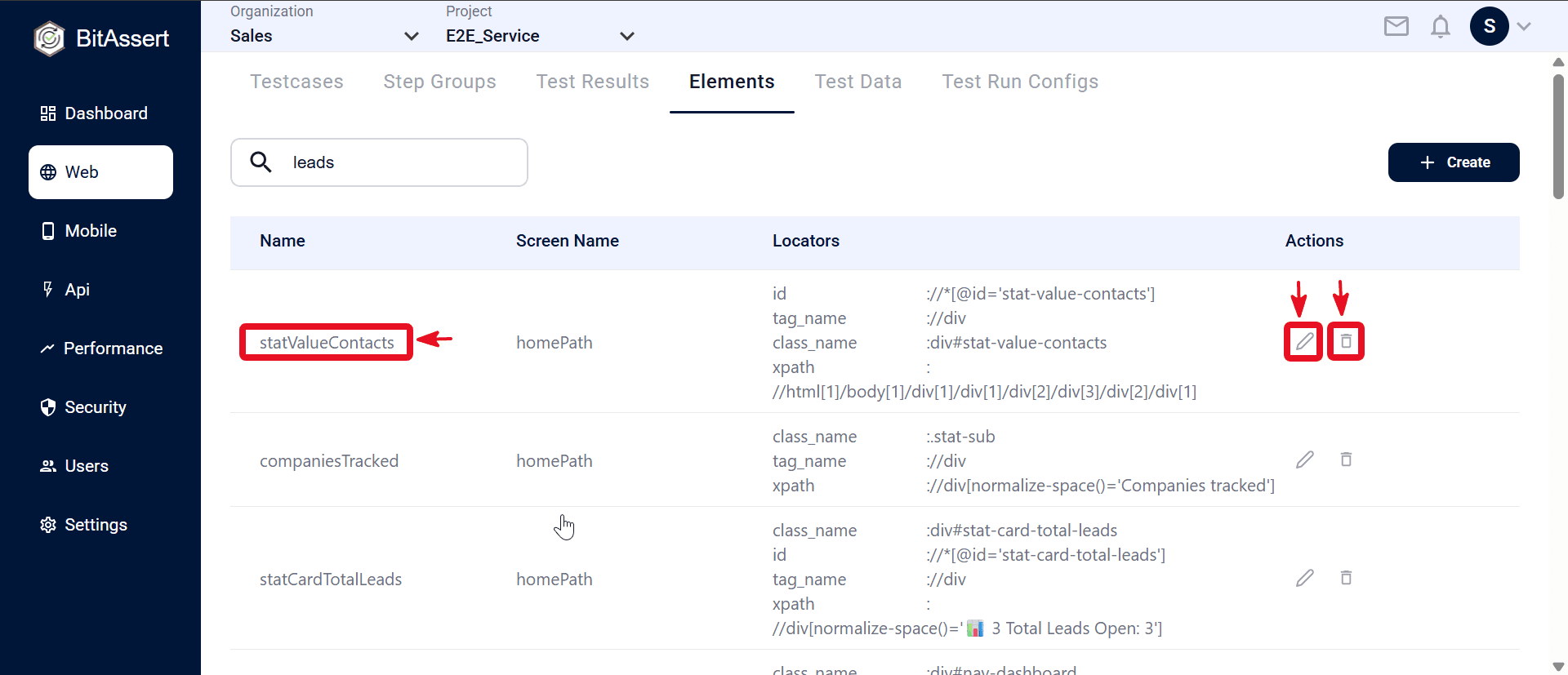
- Use Search to find elements by name (for example leads), review Name, Screen Name, and Locators, then use Edit or Delete in Actions to update or remove an element (delete only if not referenced by active testcases).
- Click + Create to open the New Element panel, then enter Element Name and Screen Name (for example contact / settings).
- Under Locators, click Add Locator. Set Active, use the toggle to enable or disable a locator, or click Remove (X) to delete a locator row. Add more locators as needed.
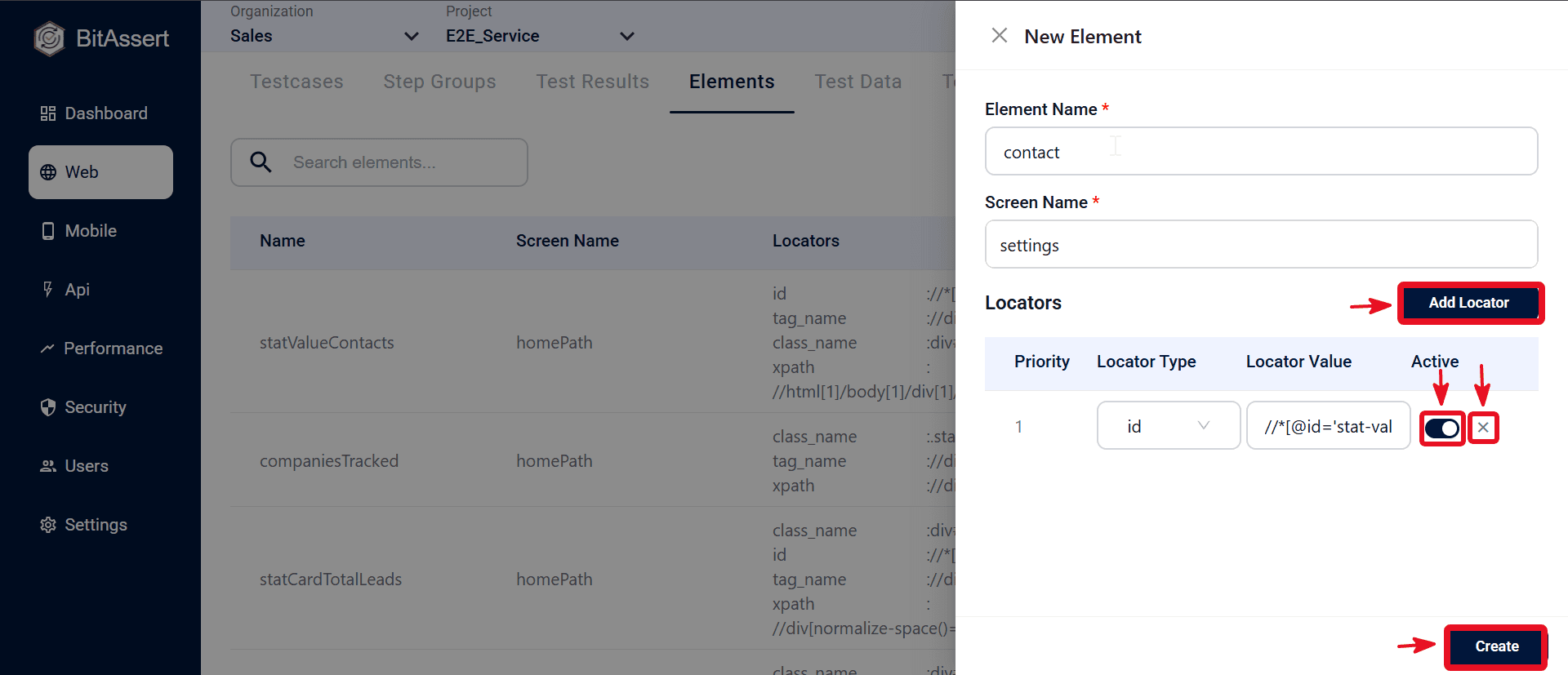
- Click Create to save the element to the project list.
Inline edit from testcase details
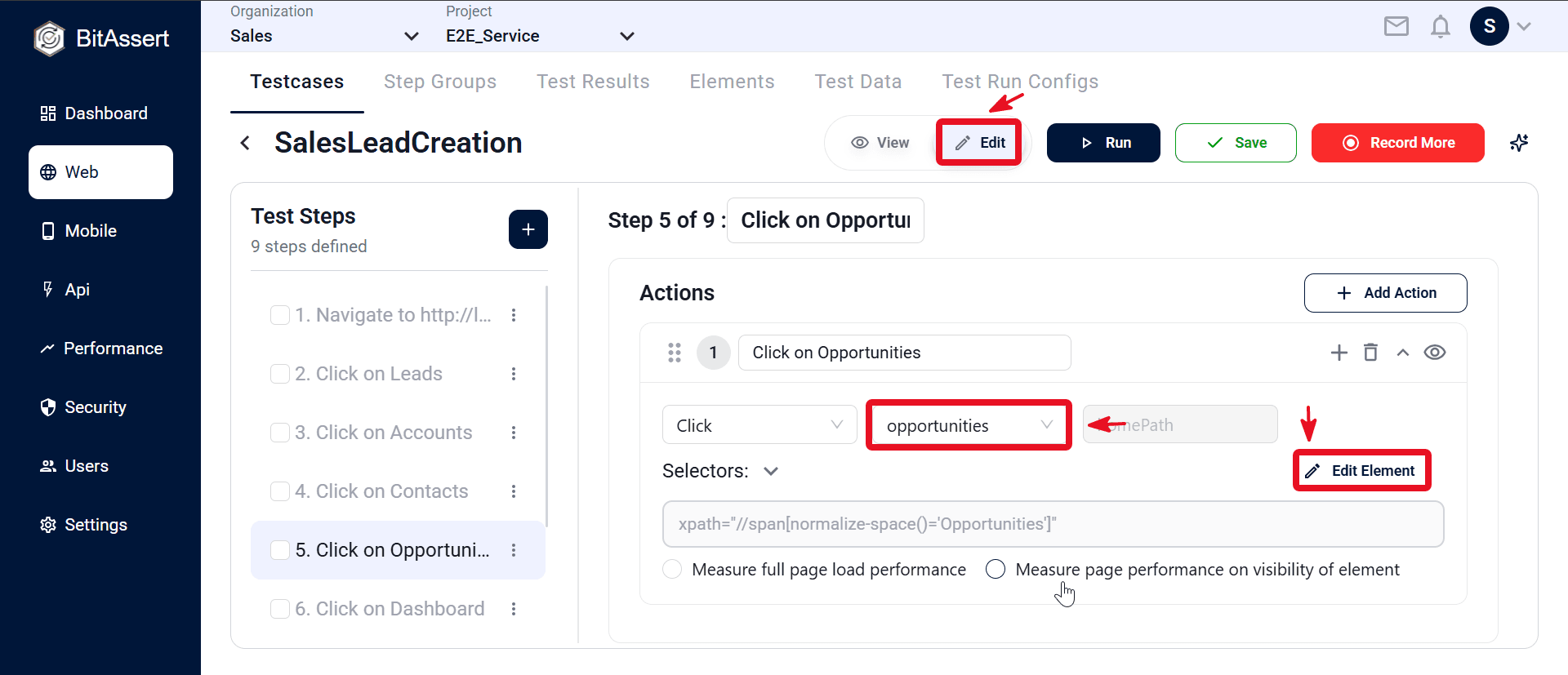
- Open testcase details, switch View → Edit, then add or select an action and open Search Element to map an existing element or add a new one from dropdown.
- For updates, expand the action and use Edit Element to adjust locator details.
Practical Tips
- Keep element names descriptive and consistent so team members can identify and reuse them easily.
- Prefer stable selectors and avoid brittle dynamic locator patterns.
- If an expected element is missing, verify project selection and access permissions first.
Expected outcome
Project elements are created and maintained with reusable locators, available from the Elements tab and in testcase actions. Updates in one place apply wherever the element is referenced, making test authoring faster and execution more reliable.