
Documentation
Web Automation
Guides for authoring, running and analysing tests across web automation, API and performance — plus setup, collaboration and release notes.
AI Assistance
Use AI Assistance to draft Web testcase steps and actions from a natural-language description. The platform sends your prompt through the Local Agent to generate an initial flow in the editor. Review and refine the output before saving—pair with edits for locators, waits, and assertions.
AI generation flow
Prerequisites
- Web testcase already created (see ).
- Correct organization/project and non–Read-only access.
- connected and available for AI generation flows.
- Switch to Edit on the testcase details page.
When to use AI Assistance
- Draft a first pass for login, checkout, or multi-step UI flows from a written scenario.
- Bootstrap steps before manual cleanup of locators, waits, and validations.
- Prefer when you need exact browser-captured interactions; use AI when you have a clear written flow.
AI-assisted authoring workflow
- Open Web > Testcases and click the testcase Name (for example SalesRepLoginDashboard; see ).
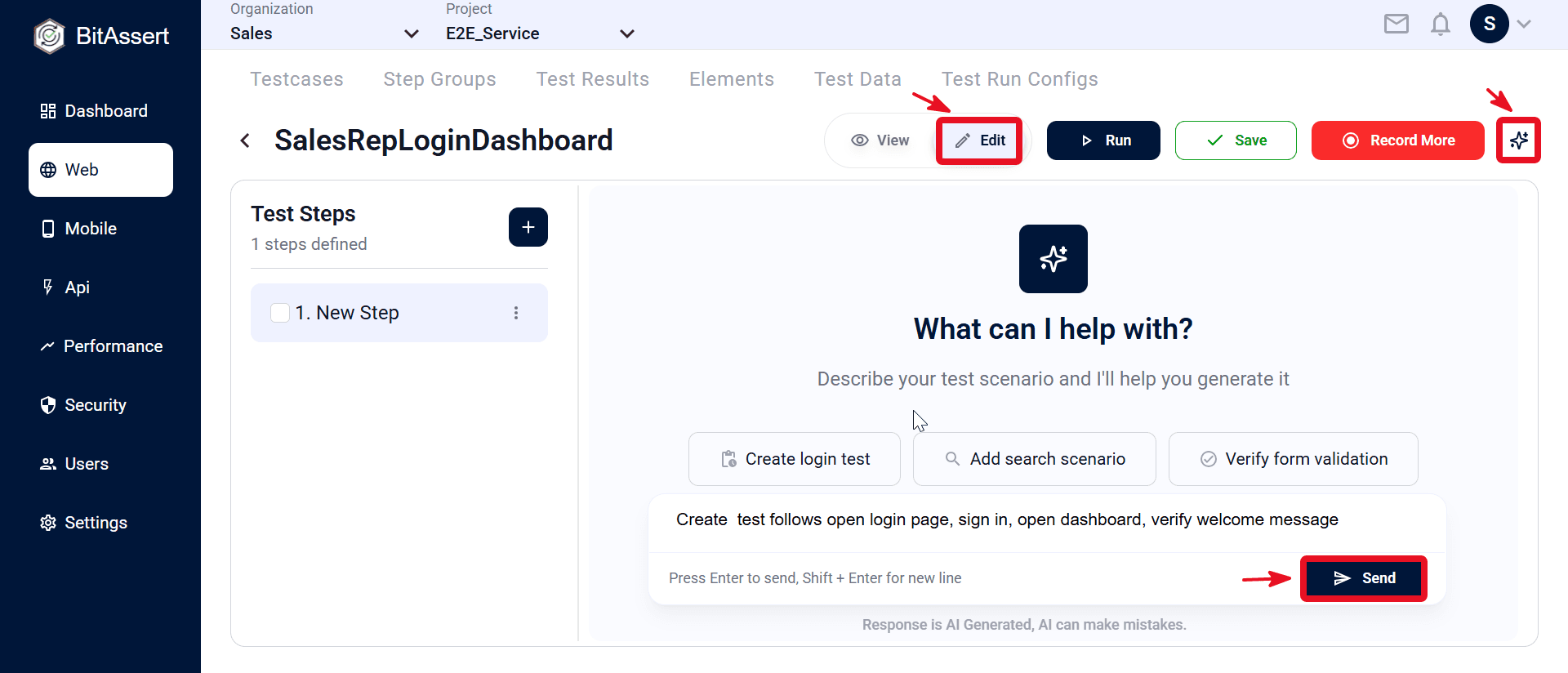
- Switch View → Edit, then click the AI Assistance icon in the top toolbar. The What can I help with? panel opens on the right.
- Type your test flow in the prompt box (URL, actions, and what to verify). For example: open login page, sign in, open dashboard, verify welcome message.
- Click Send and wait for generation to complete. New steps and actions appear in the Test Steps panel on the left.
- Review each step: rename phases, adjust action types, use + Add Action or Edit Element to fix locators and required fields.
- Disable or delete unwanted generated steps, then click Save in the top bar.
Expected outcome
A Web testcase with AI-generated steps and actions is saved in the project, ready for further manual refinement and execution with a test run config.
Common issues
- AI option unavailable: confirm is connected; see for agent-specific setup.
- Empty or partial output: add more detail to the prompt (URL, field labels, expected page titles) and regenerate.
- Flaky elements: open Edit Element and save stable locators before running.
- Save warnings: complete required action fields on generated steps before saving.