Web Automation
Guides for authoring, running and analysing tests across web automation, API and performance — plus setup, collaboration and release notes.
Test Results
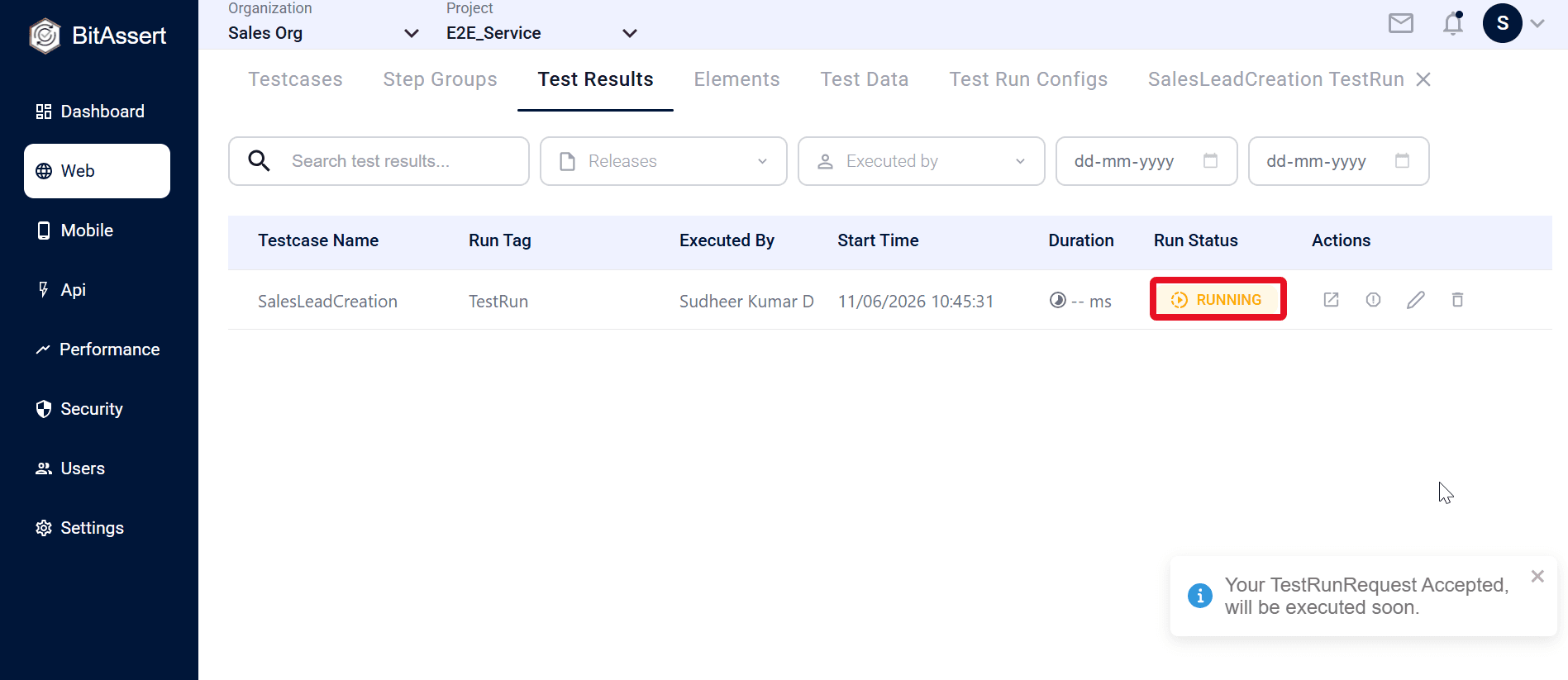
Test Results is the execution history for your Web project. Open a result to review pass/fail status, screenshots, metrics, and action details for every step and step group. Use this page to monitor in-progress runs, investigate failures, re-run tests, or export a bug report when steps fail. Local Agent runs are for debugging only and are not stored in Test Results.
Review a result
- Go to Web > Test Results and click a run row.
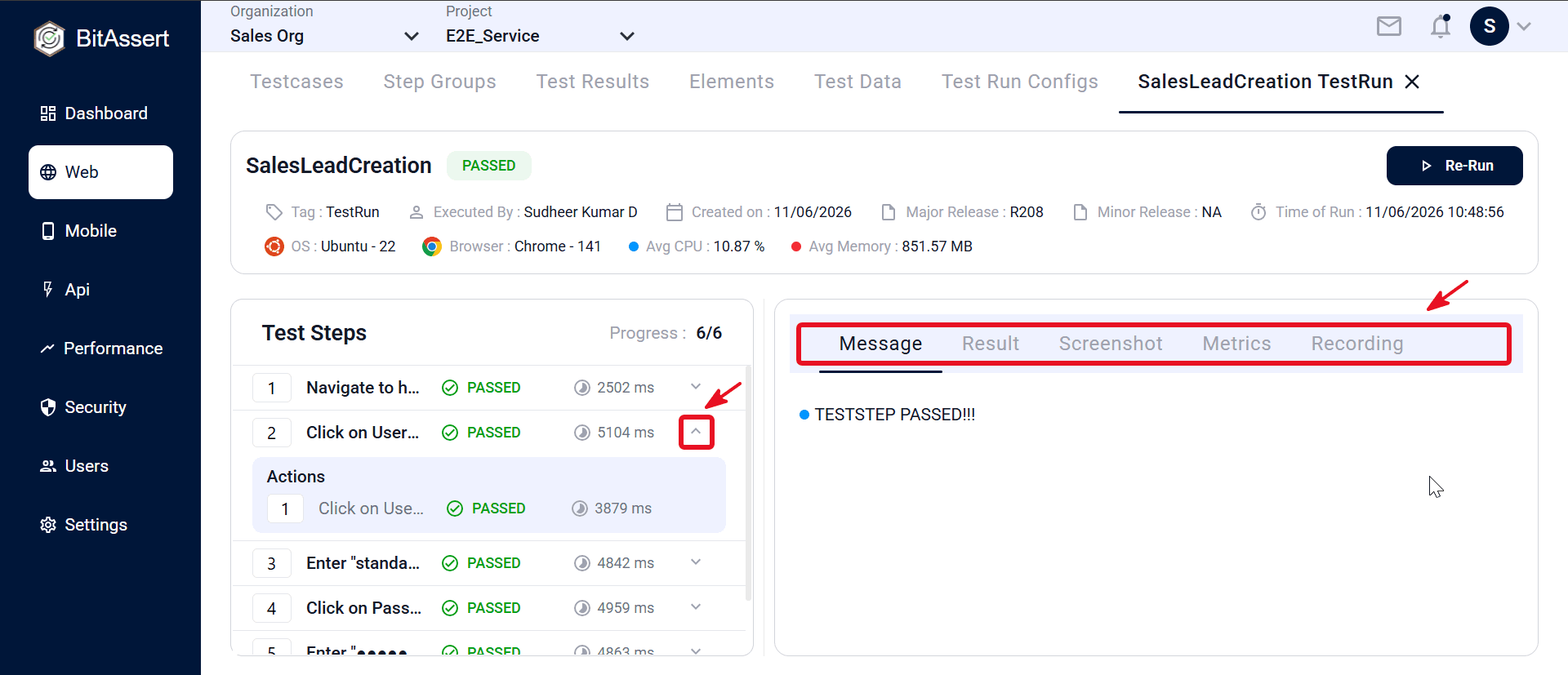
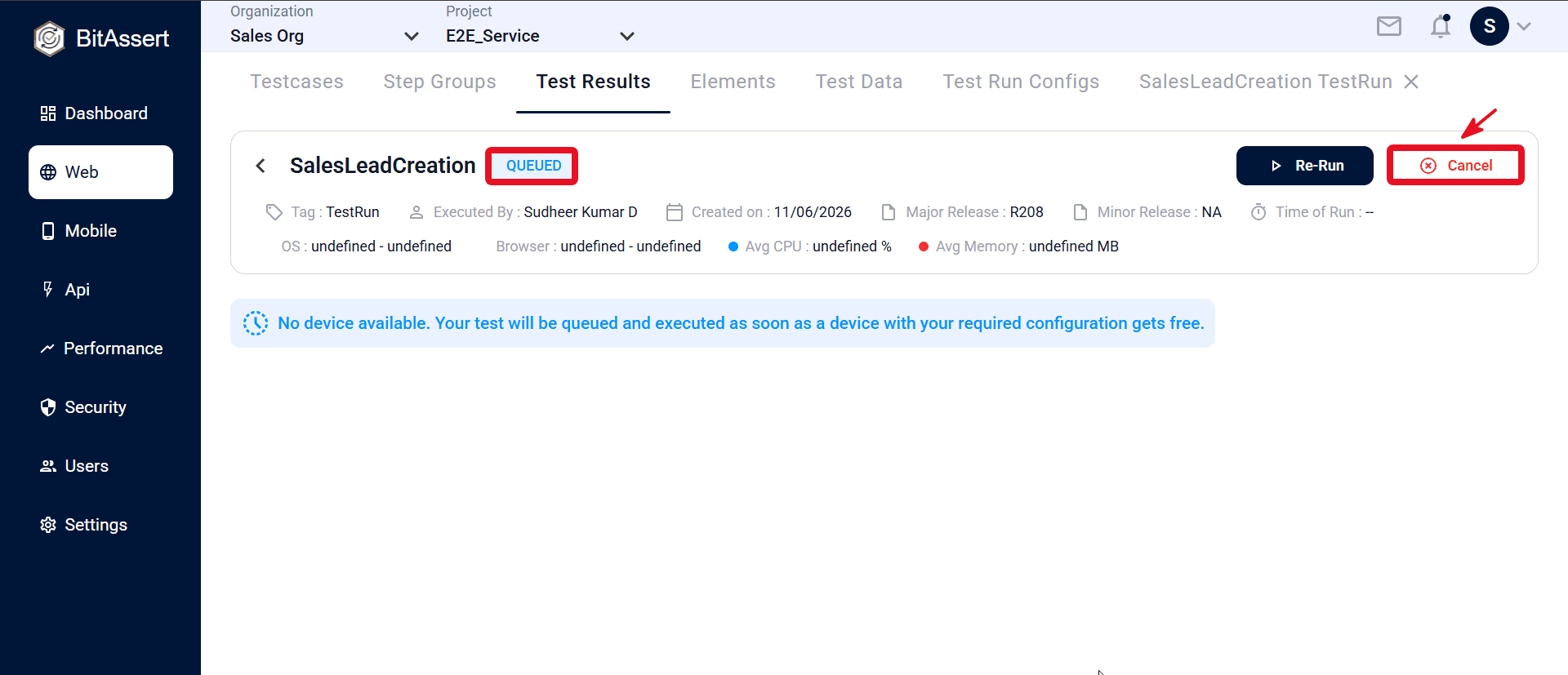
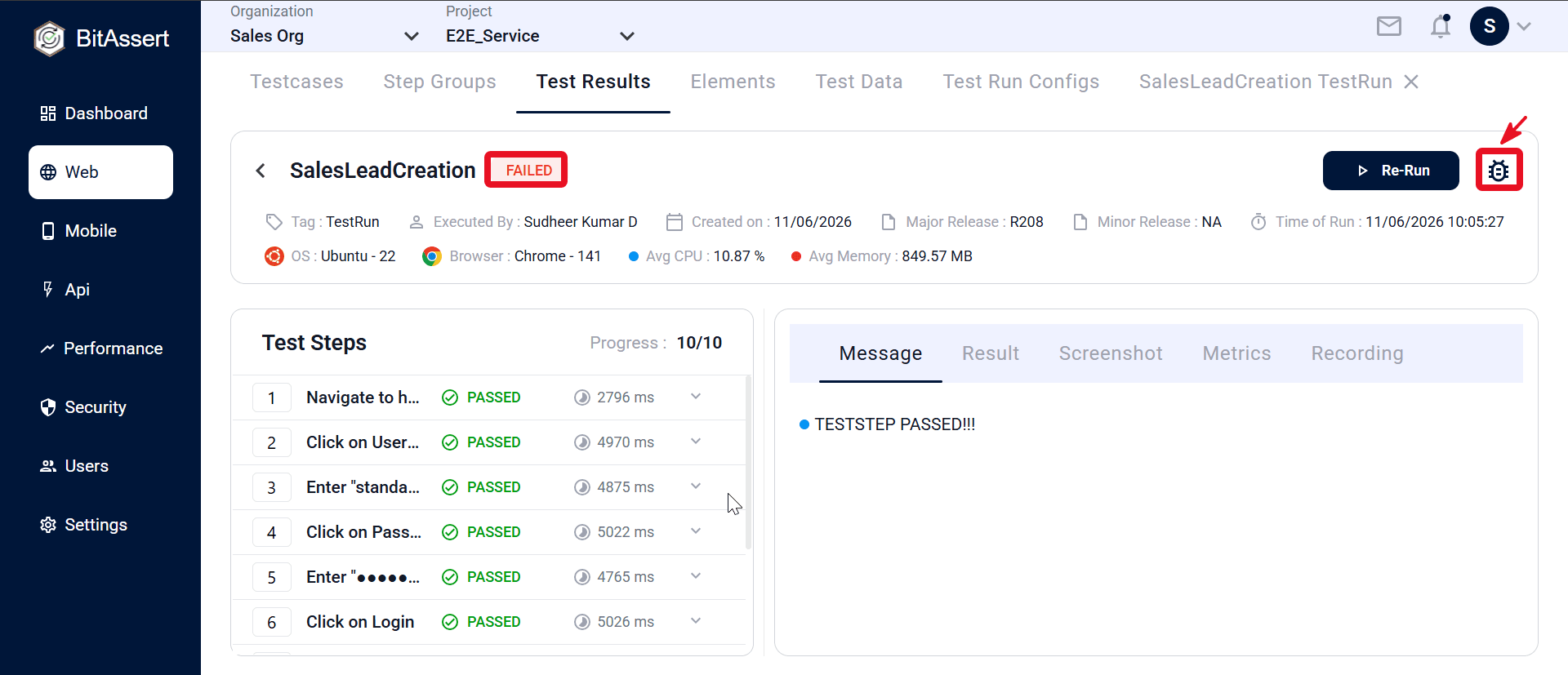
- Read the summary at the top — testcase name, overall result, run tag, executed by, release, run time, OS, browser, and average CPU / memory.
- Use the Test Steps panel on the left to expand steps, step groups, actions, and sub-actions. Each step shows status, duration, and progress (executed / total).
- Select a step and review its tabs — Message, Result, Screenshot, Metrics, and Recording (when available).
Actions
On the result details page:
- Re-Run — start again with a new tag and Test Run Config.
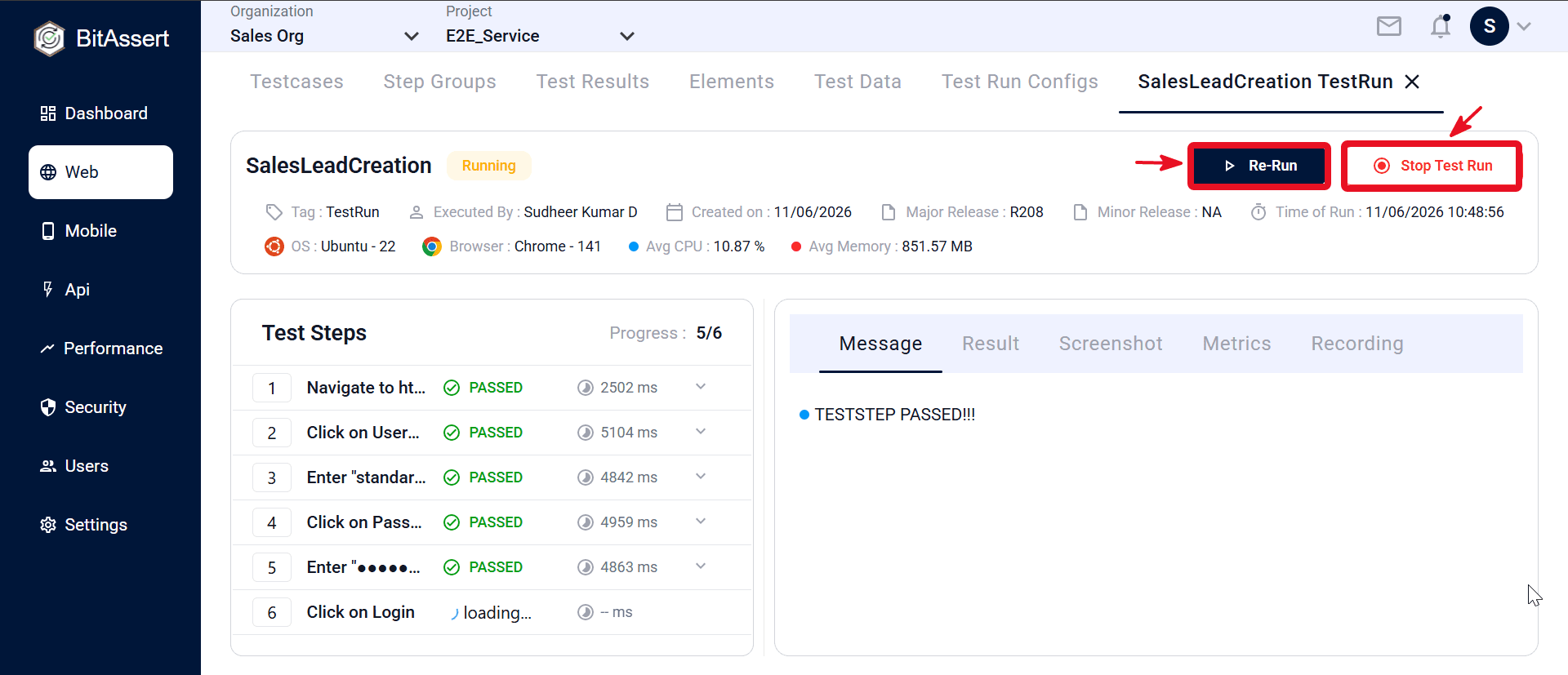
- Stop Test Run — halt an in-progress run.
- Cancel — cancel a queued run.
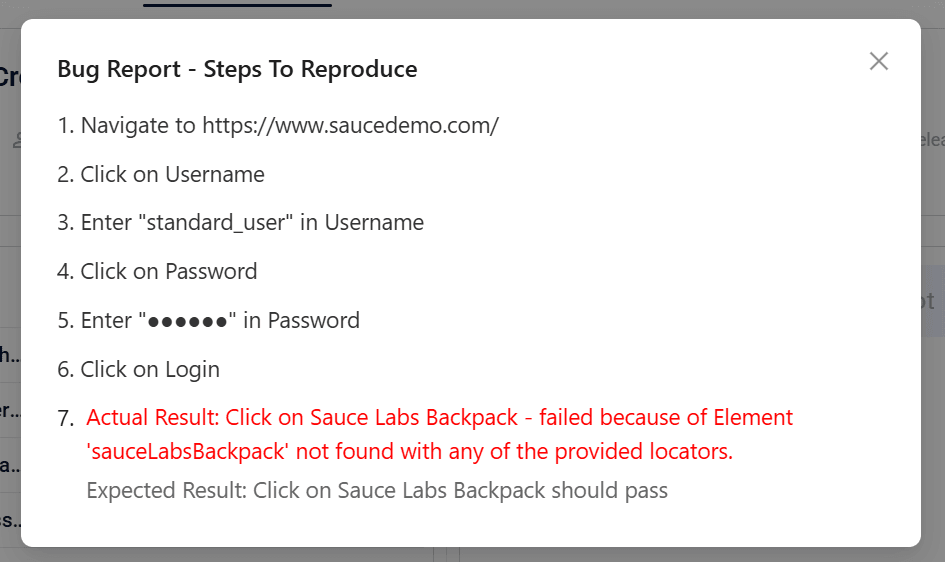
- Bug Report — available when the run has failures. On the result details page, click the bug icon next to the run actions.
- The Bug Report modal opens with numbered steps to reproduce, including the failed step and actual result message.
Live updates
While a run is IN_PROGRESS, the details page refreshes in real time. Step status and progress update as each step completes — no need to reload the page.
To start a run, see . For Stop and Cancel by run state, see .
Practical tips
- Check overall status first, then open the first failed step — root cause is usually there.
- Use release or date filters when comparing runs across builds or sprints.
- On failed steps, open the Message tab to see resolved Test Data Variables at runtime.
- For in-progress runs, keep the details page open; step status updates without refreshing.
Expected outcome
You can locate Web runs in the results list, open any run for step-level analysis, interpret pass/fail outcomes, and use Re-Run or execution controls to act on the result.