
API Testing
Guides for authoring, running and analysing tests across web automation, API and performance — plus setup, collaboration and release notes.
Test Results
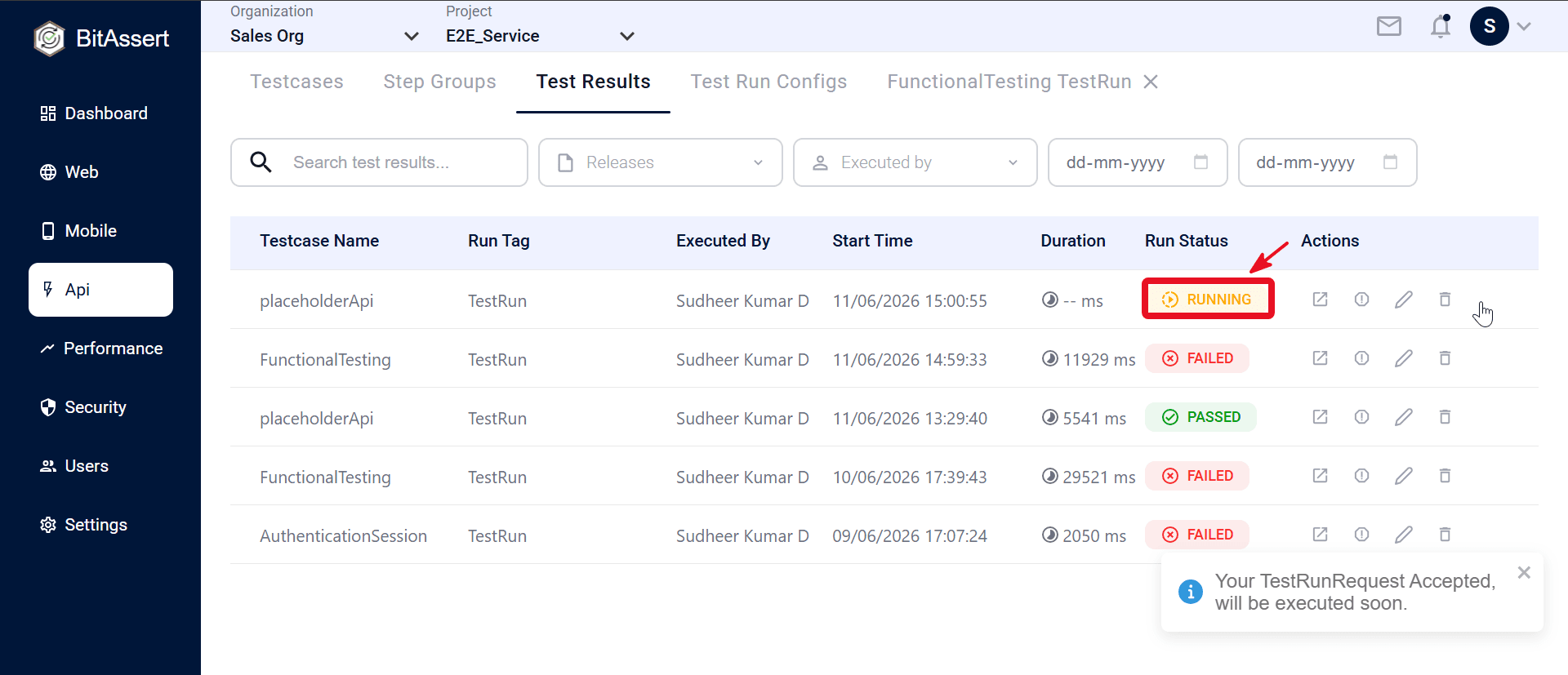
Test Results stores and displays outcomes from cloud API runs. Open a result to review HTTP responses, validation outcomes, and extracted variables for each step and step group. Use this page to monitor in-progress runs, investigate failures, and re-run testcases with a new tag and Test Run Config. Local Agent and Send debugging stay in the testcase editor and are not listed here unless you run via Cloud.
Note:
Only cloud API executions appear in Test Results. Local Agent full runs and single-step Send responses are not saved to the platform.
Review a result
- Go to API > Test Results and click a run row.
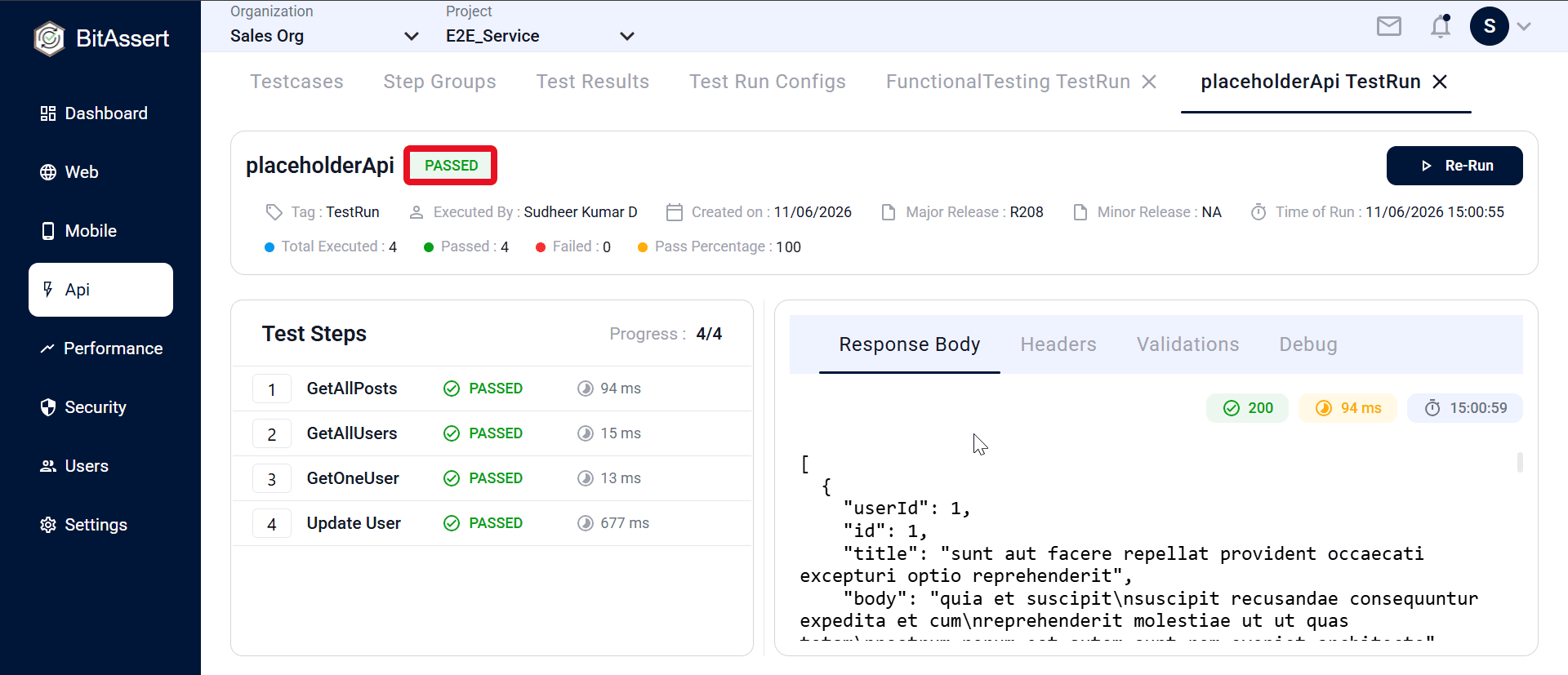
- Read the run summary — testcase name, overall status, tag, executed by, release, timing, and pass/fail counts.
- Use the step list on the left to expand step groups and select a step. Review response body, headers, validations, and debug details on the right.
Actions
On the result details page:
- Re-Run — queue the same testcase again
- Stop Test Run — while IN_PROGRESS
- Cancel — while QUEUED
Detail view — step list
- The left panel lists all API steps from the run.
- Each step shows request name, PASSED/FAILED (or loading while running), and response time (ms).
- Step Groups appear as one expandable row; expand to see inner requests.
- Click a step to view its response details on the right.
Detail view — step tabs (API)
| Tab | Content |
|---|---|
| Response Body | HTTP response body (JSON formatted when applicable) |
| Headers | Response headers (name / value table) |
| Validations | Assertion results per rule |
| Debug | Step message, Extracted Variables, Test Data Variables Map |
Badges above the tabs show status code, response time, and end time for the selected step.
What gets recorded
Cloud runs capture per-step HTTP results, assertion outcomes, extracted variables, and test data variable resolution. This matches what you configured in the testcase (requests, validations, extractions, and step groups).
To start a run, see . For Stop and Cancel by run state, see .
Practical tips
- Check overall status first, then open the first failed step — the response body and Validations tab usually show the root cause.
- Use release or date filters when comparing runs across builds or sprints.
- On failed steps, open Debug to review extracted variables and the Test Data Variables Map at runtime.
- For in-progress runs, keep the details page open; step status updates as each HTTP request completes.
Expected outcome
You can locate cloud API runs in the results list, open any run for step-level HTTP analysis, interpret pass/fail outcomes, and use Re-Run or execution controls to act on the result.