
API Testing
Guides for authoring, running and analysing tests across web automation, API and performance — plus setup, collaboration and release notes.
Execute Tests
API testcases can be run in three ways — Cloud (queued server run), Local Agent (full testcase on your machine), and Send (single step via Local Agent). Each serves a different purpose. Use Cloud for official runs saved in Test Results; use Local Agent or Send while authoring and debugging — those outcomes are not stored in the platform.
Where to run from
| Location | What you can do |
|---|---|
| Testcase details | Run → Local Agent or Run → Cloud |
| Testcases list | Run on a row (cloud) |
| API → Test Results | Re-run a completed run (cloud) |
| Step Group editor | Local Agent only (no Cloud option) |
Prerequisites
- At least one API testcase with enabled steps (see Manual or Import Postman collection).
- For cloud runs: a with automation_api (or create one from the run dialog).
- For Local Agent and Send: launched and connected.
How to run a test
Use Cloud for official runs tracked in Test Results.
From Testcases list
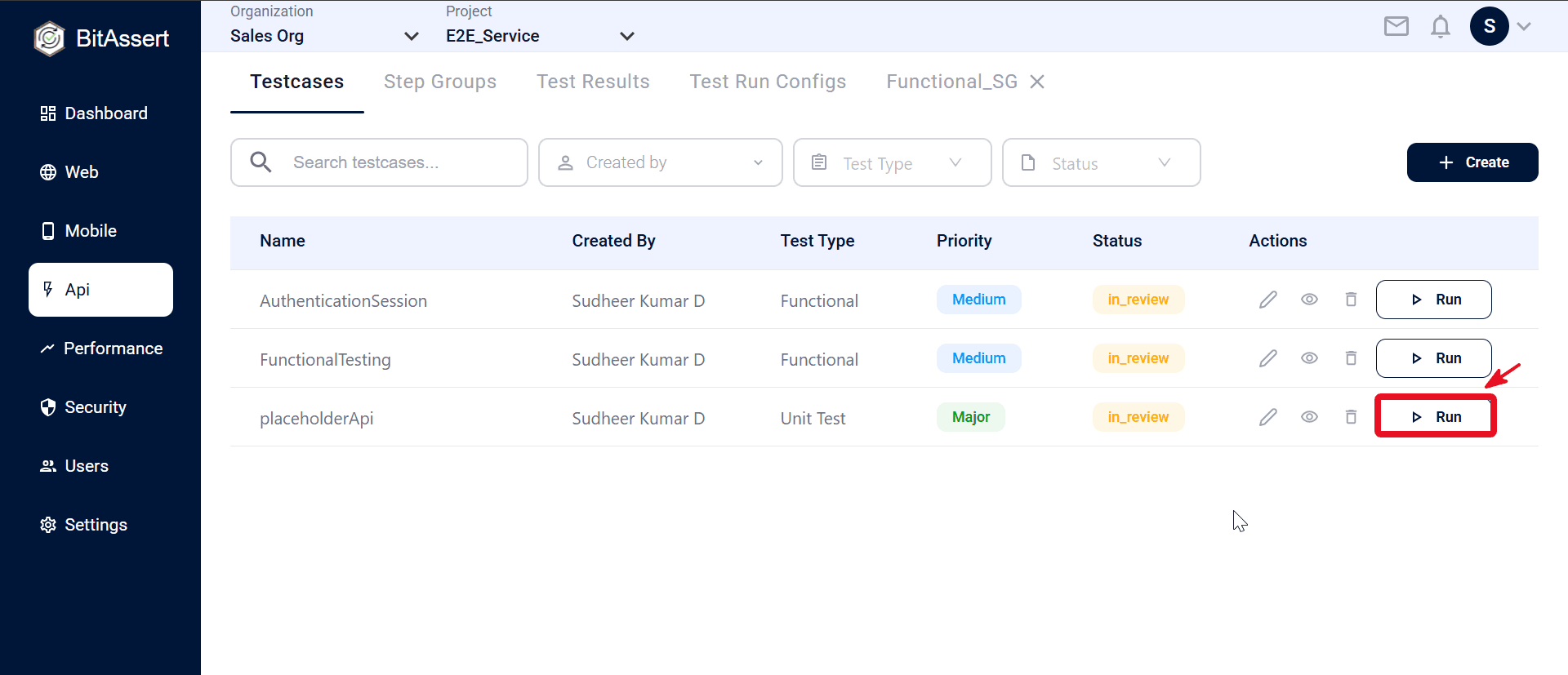
- Open API > Testcases and click Run on a saved testcase row.
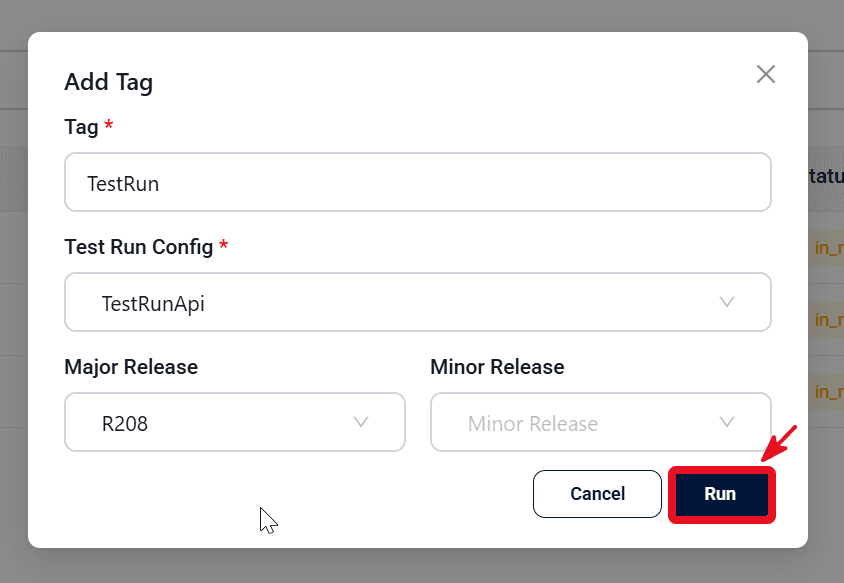
- Enter a Tag (required), select a Test Run Config (required), and optionally pick major/minor release. See .
- Click Run to queue the run. Results are saved in Test Results.
From testcase details
- Open a saved API testcase (Cloud needs a saved testcase ID).
- Click Run → Cloud.
- Enter a Tag (required), select a Test Run Config (required), and optionally pick major/minor release. See .
- Click Run to queue the run. Results are saved in Test Results.
From Test Results (Re-Run)
Open a completed run under API > Test Results, click Re-Run, enter tag and Test Run Config in the same dialog, then click Run to queue the run.
Local Agent execution
Debug a full testcase on your machine without queuing a cloud run.
- Start the Local Agent on your machine.
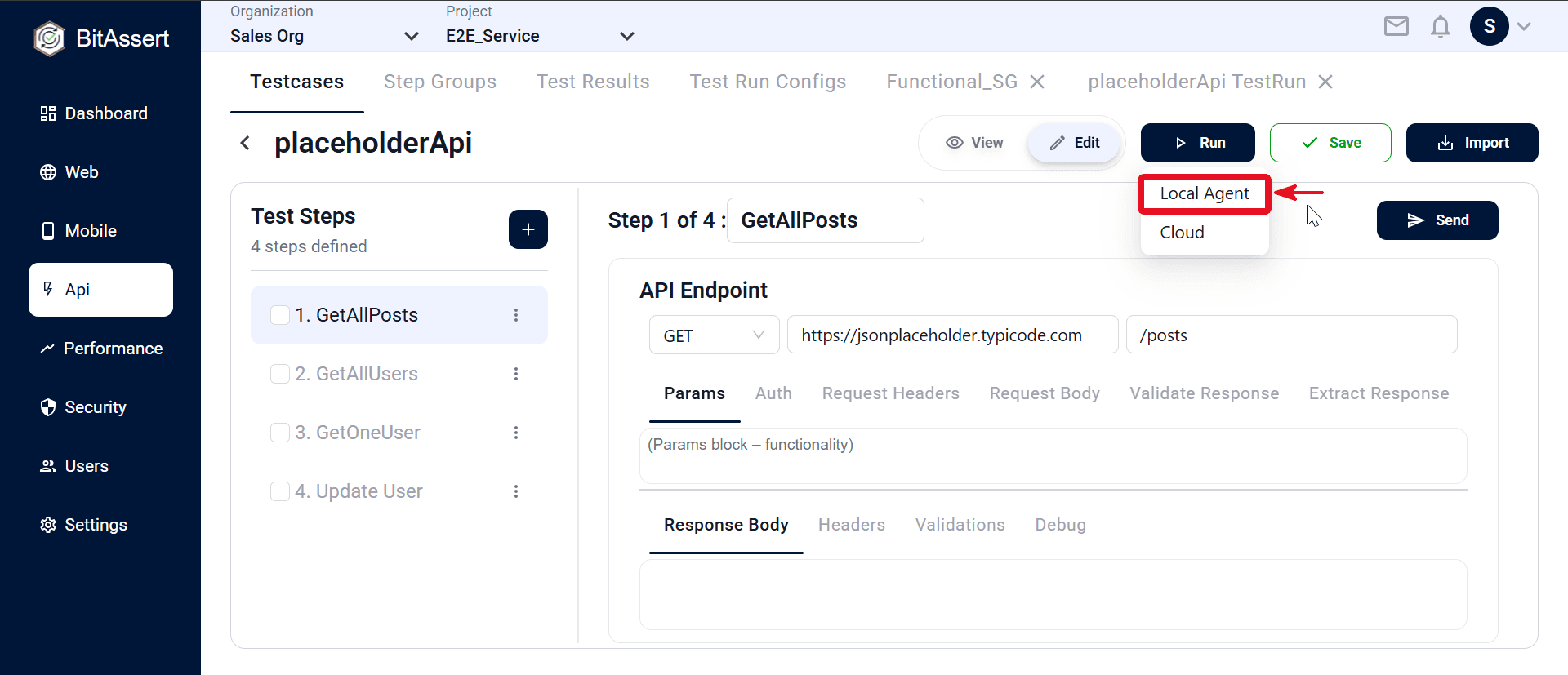
- Open the API testcase and click Run → Local Agent.
- The UI connects over WebSocket and runs enabled steps from the current editor state (including unsaved changes).
- Pass/fail icons appear on each step. Results are not saved in Test Results.
From step groups
Open a , click Run, and choose Local Agent only. Inner HTTP steps run in sequence; outcomes stay in the editor.
Send (single step)
Test one HTTP request while authoring.
- Select a normal API step (not a Step Group step).
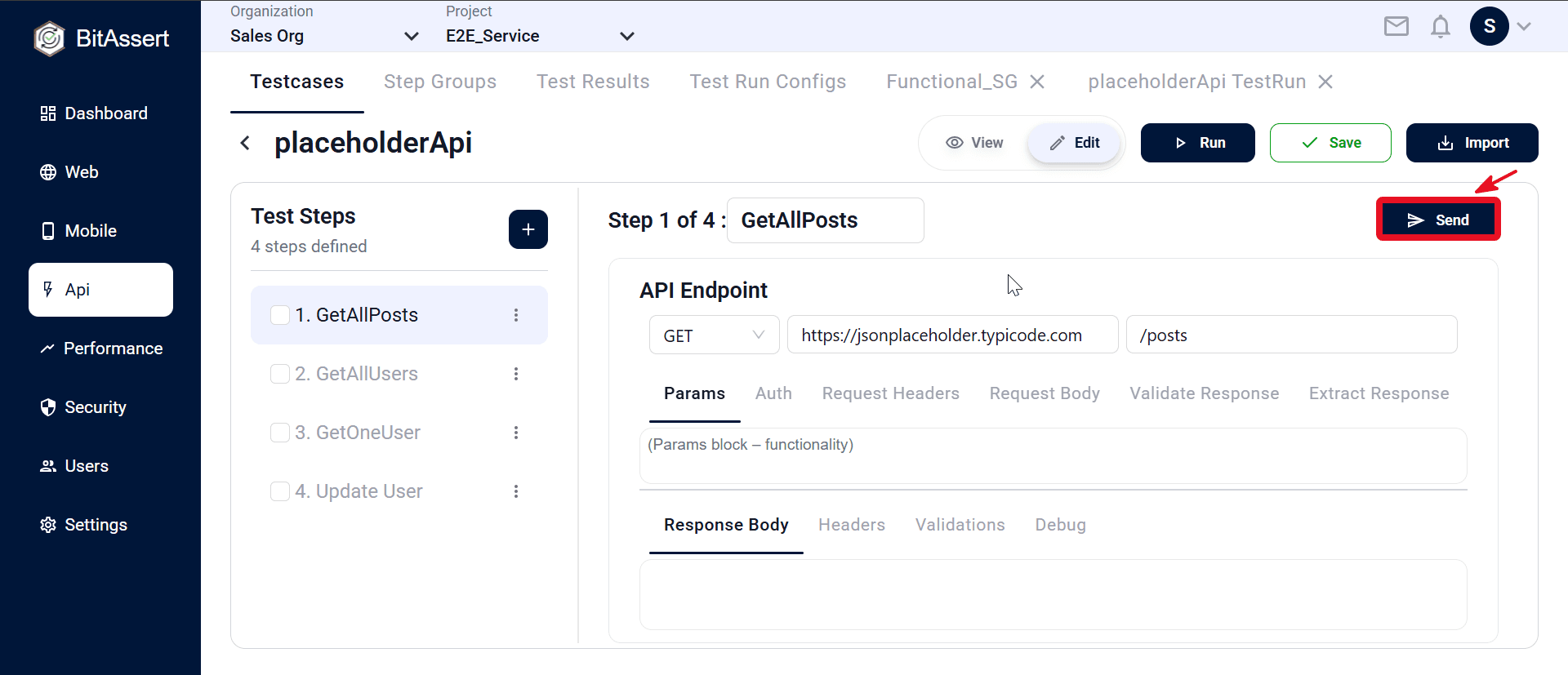
- Click Send in the request panel.
- The step runs through Local Agent. Response appears in the panel (body, headers, status, validations, extractions).
- After a response returns, can suggest validations and extractors for that step.
Limits
- Send is not available for Step Group steps in the testcase view.
- Inner steps cannot be sent individually from the testcase — use the Step Group editor for per-step Send.
- Disabled steps cannot be sent.
Note: Before you run
- Cloud runs cannot exceed your plan's Max execution time. See .
- Make sure the Local Agent is launched and running on your machine.
- Local Agent and Send results are not saved in Test Results — live feedback in the editor only. Use Cloud when you need saved run history.
- If the agent is not connected, execution fails with a local agent error.
After execution
- Cloud — open API → Test Results for run status, per-step response and validation details, re-run, stop, cancel, mark invalid, or delete.
- Local Agent / Send — results stay in the testcase editor (step icons and response panel). For a saved record, run via Cloud.
Expected outcome
Cloud runs queue successfully and appear in Test Results with step-level HTTP details. Local Agent runs complete with live pass/fail in the editor. Send returns the step response for quick validation. For persisted history, tags, and team visibility, use Cloud execution.