
API Testing
Guides for authoring, running and analysing tests across web automation, API and performance — plus setup, collaboration and release notes.
AI Assistance
AI is a response analysis assistant. Run a step with Send, then open AI Assistant on the response to get suggested Validate Response and Extract Response rules from your prompt. Review, edit, select what you need, and Add them to the step, then Save the testcase. Unlike Web AI Assistance, API AI does not create full testcases or HTTP steps. Author requests first—manually or via Postman import—then use AI to speed up assertions and variable extraction on real responses.
API AI analysis flow
Note:
API AI analyzes the current step's response and your prompt — it suggests Validate Response and Extract Response rules only. It does not create new API steps or full testcases.
What AI does in API
- Suggest Validate Response rules (assertions).
- Suggest Extract Response rules (variable extraction).
- Let you review, edit, select, and add suggestions to the current step.
When AI is available
- Open an API testcase in Edit mode and select a step.
- Run the step with Send (Local Agent) so a response is returned.
- When the response has a body, the AI Assistant icon appears in the response panel.
- AI also works for steps inside a Step Group after you run that inner step.
AI-assisted workflow
- Open API > Testcases, click the testcase Name, and switch to Edit.
- Select a step and configure the request (method, URL, path, Params, Auth, headers, body) — see .
- Click Send to execute the step and load the response.
- Click the AI Assistant icon in the response area to open the AI modal.
- Enter a prompt (for example: "Analyse response body and generate response extractors and assertions") and press Send or Enter and wait for the suggestions.
- Review suggestions in Validate Response and Extract Response sections. Use the check control on each row to include or exclude rules; edit fields as needed.
- Click Add to apply selected rules to the current step.
- Click Save in the top bar to persist validations and extractions.
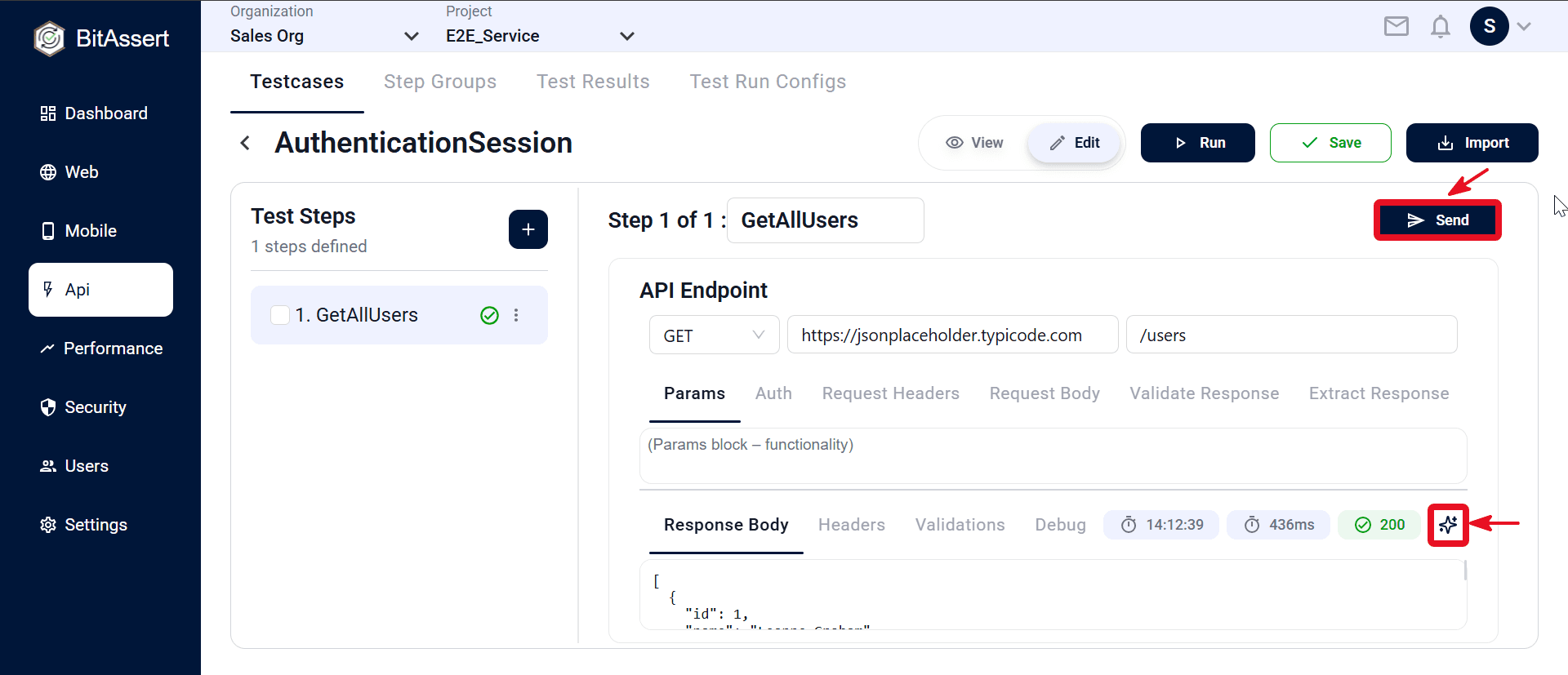
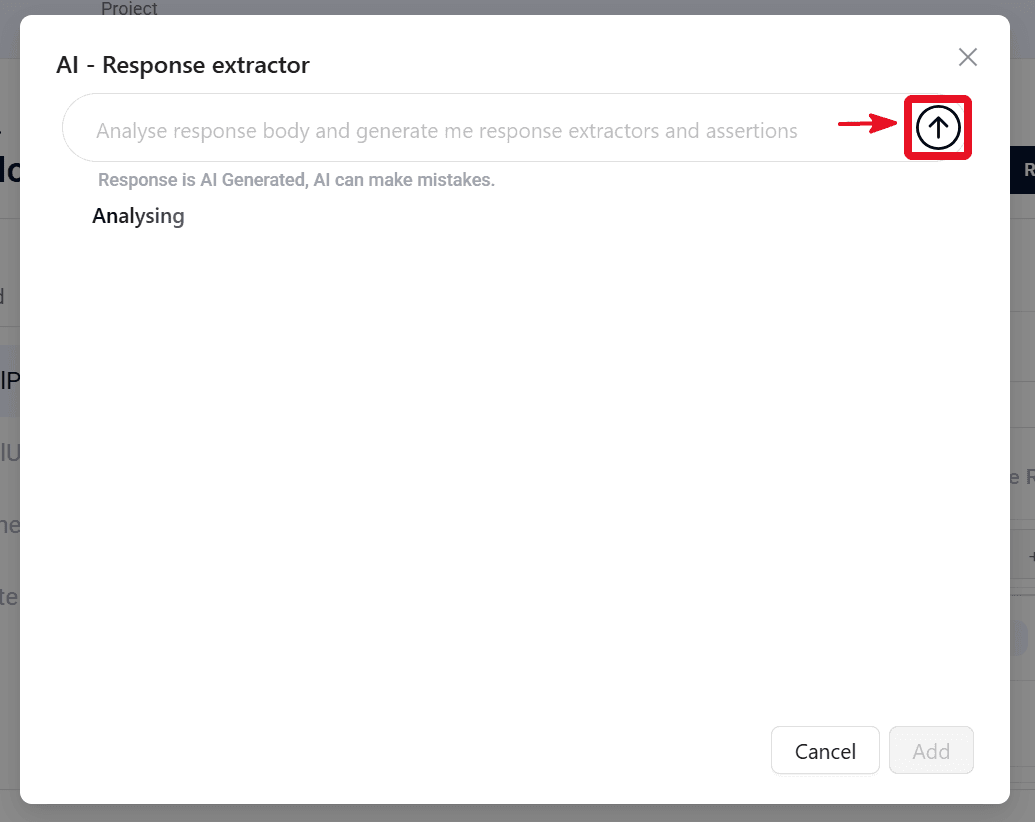
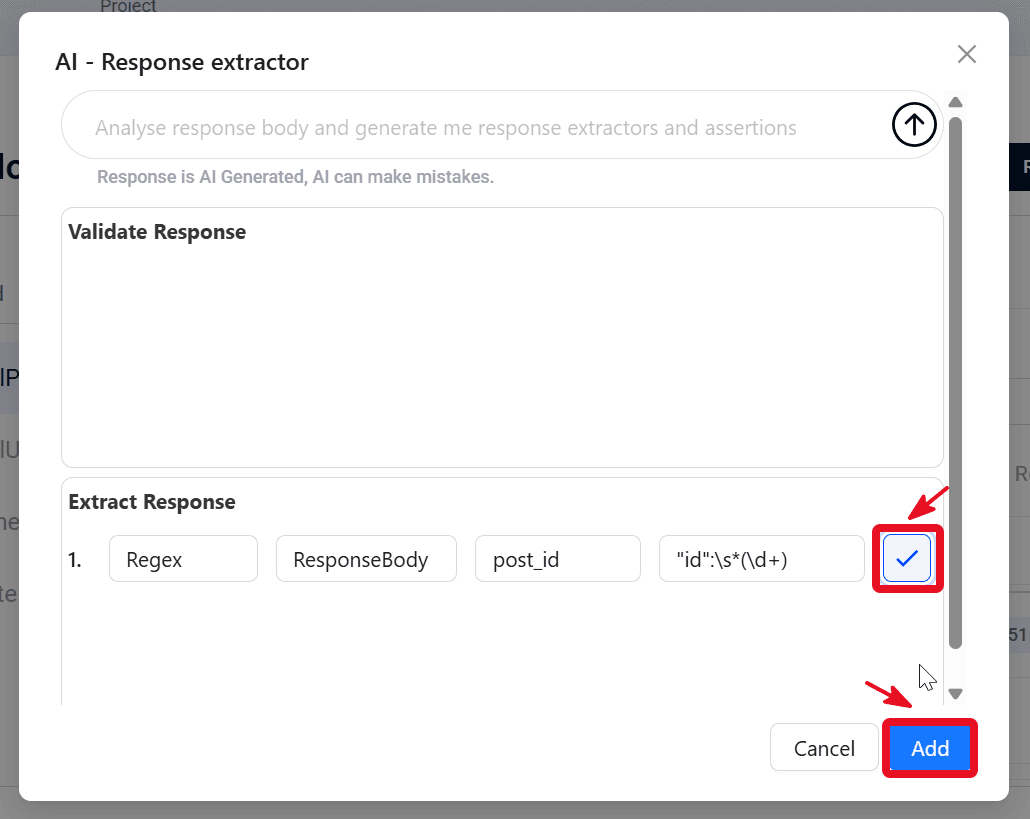
What AI can suggest
| Validate Response field | Used for |
|---|---|
| Field to Test | ResponseCode, ResponseBody (ResponseHeaders may be filtered) |
| Assert Type | Mapped automatically (Equals, Matches, Contains, and similar) |
| Patterns to Test | Expected value or pattern for the assertion |
| Extract Response field | Used for |
|---|---|
| Extract Type | Regex, JSONPath, XPath |
| Field to Check | ResponseCode, ResponseHeaders, ResponseBody, URL |
| Variable Name | Name for use in later steps |
| Path or Expression | For example $.data.id, regex, or XPath |
Requirements and limits
- A response body must exist before AI can be used.
- Edit mode is required to open AI and apply suggestions.
- AI analyzes the current step's response plus your prompt — it does not create new API steps.
- Add is enabled only when at least one rule is selected and all selected rules have required fields filled.
- AI state is kept per step if you reopen the modal for the same step.
Expected outcome
Selected Validate Response and Extract Response rules are added to the current API step and saved with the testcase, ready for full testcase execution.