Performance Testing
Guides for authoring, running and analysing tests across web automation, API and performance — plus setup, collaboration and release notes.
Test Results
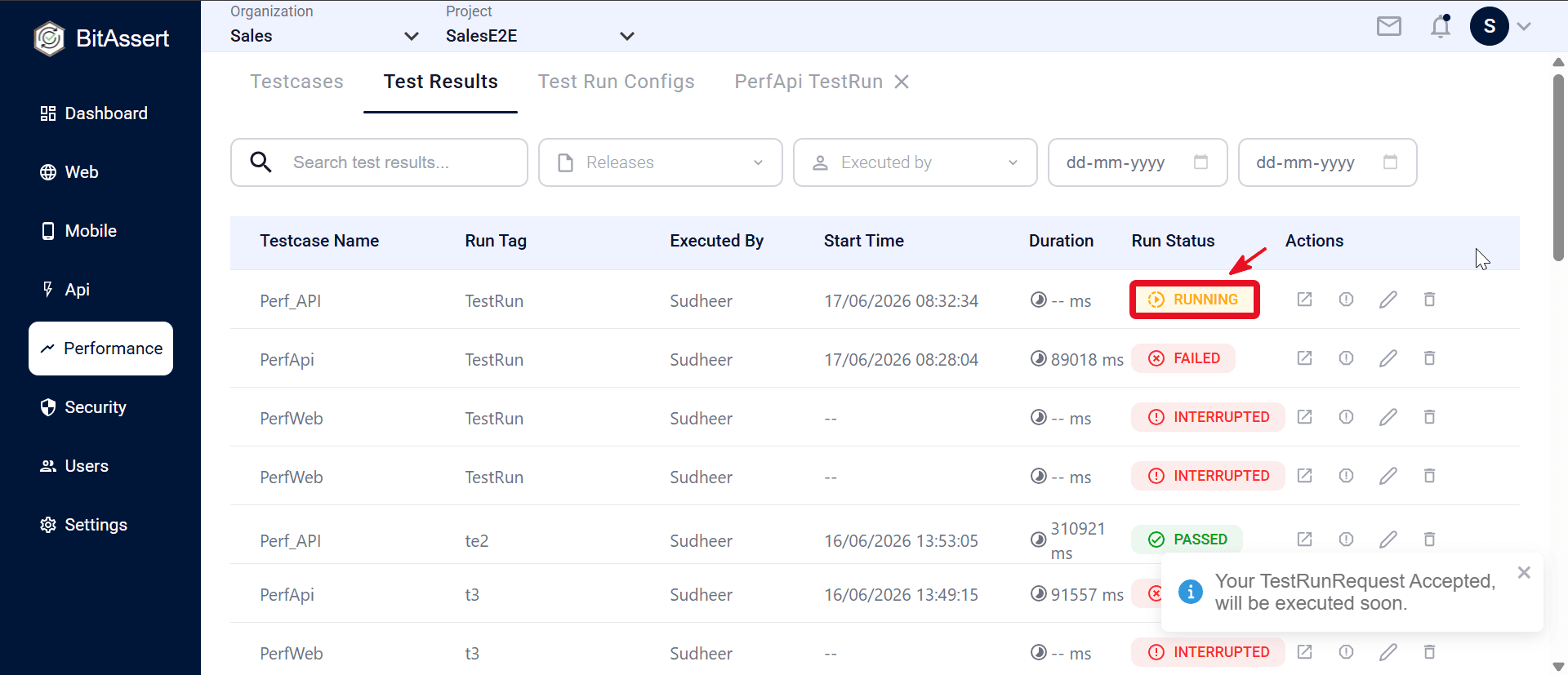
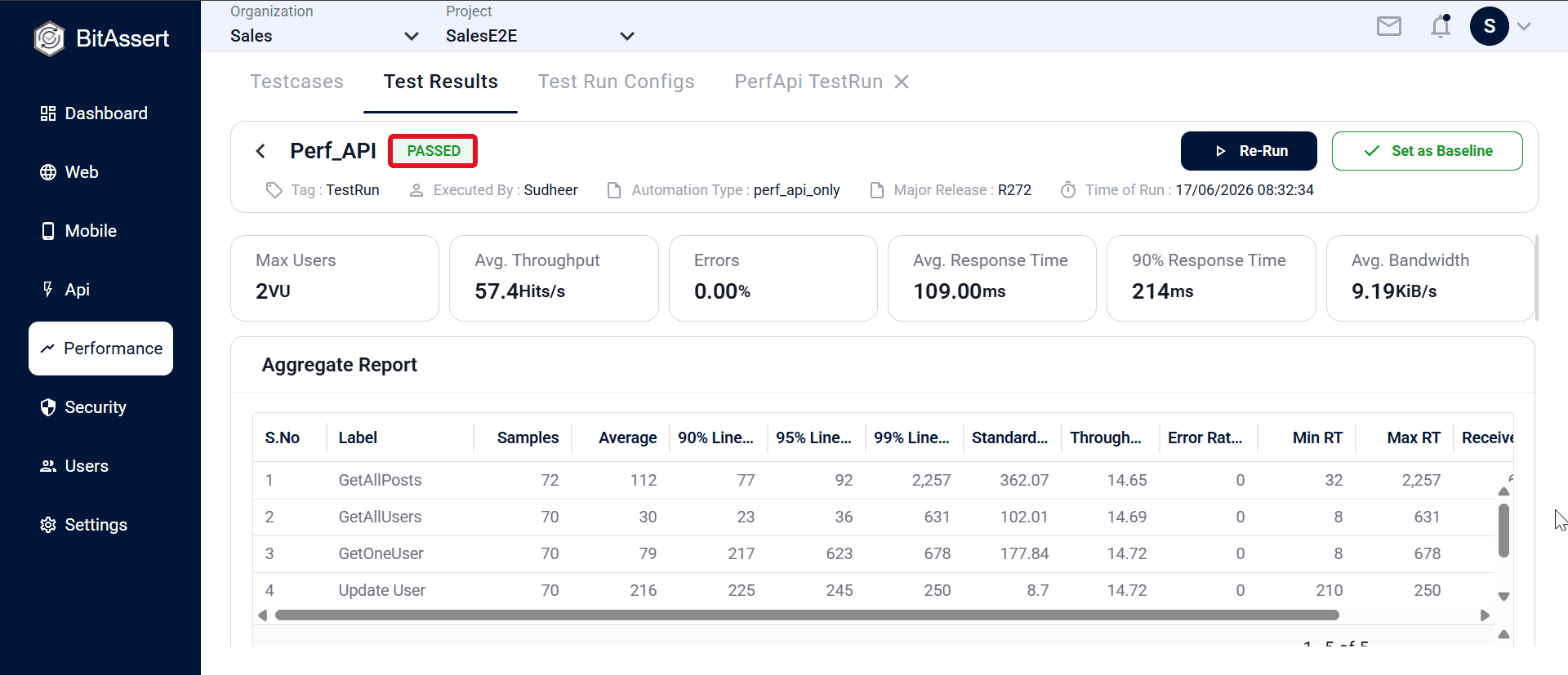
Performance Test Results lists every cloud performance run with tag, executor, timing, and status. Open a row to see live or final metrics — throughput, response times, errors, aggregate tables, and charts — tailored to API, Web, or both. From the detail page you can re-run, stop or cancel active runs, and set a passed completed run as the baseline for that release.
Note:
Only cloud performance executions appear in Test Results. Performance runs are not started via Local Agent.
Review a result
- Go to Performance > Test Results and click a run row.
- Read run metadata — tag, executed by, automation type, major release, and time of run.
- Review summary metrics, aggregate tables, and charts (content depends on API, Web, or API + Web).
Result detail page
The detail view shows run metadata, summary metrics, tables, and charts. Content depends on automation type. Metrics and charts appear when the run is IN_PROGRESS, COMPLETED, ABORTED, or STOPPING. For other states (for example QUEUED), only a status message is shown.
Actions
- Re-Run — run the same testcase again (tag + Test Run Config; API + Web needs separate API and Web configs)
- Set as Baseline — available only when status is COMPLETED and result is PASSED; marks this run as the baseline for that testcase within the major release (toggle to remove baseline). See
- Stop Test Run — while status is IN_PROGRESS
- Cancel — while status is QUEUED
To start a run, see . For baseline comparison over time, see and .
Practical tips
- Keep the detail page open during IN_PROGRESS runs — metrics stream live without refresh.
- Use release and date filters when comparing runs across builds or sprints.
- For API + Web, expand each section fullscreen to focus on Web or API metrics separately.
- Set baseline only on stable PASSED runs you want future runs compared against.
Expected outcome
You can locate performance runs in the results list, open any run for live or final metrics, interpret pass/fail and throughput/latency data, and use Re-Run, Stop, Cancel, or Set as Baseline from the detail page.