
Performance Testing
Guides for authoring, running and analysing tests across web automation, API and performance — plus setup, collaboration and release notes.
Execute Tests
Performance tests run only in the cloud. There is no Local Agent or single-step Send like functional API or Web testing. Execution uses the platform load infrastructure (cloud agents, devices, licenses). Save the performance testcase, click Run, enter a tag and Test Run Config in the run dialog, click Save to queue the run, then track progress under Performance → Test Results.
Where to run from
| Location | Action |
|---|---|
| Testcase details | Save, then Run |
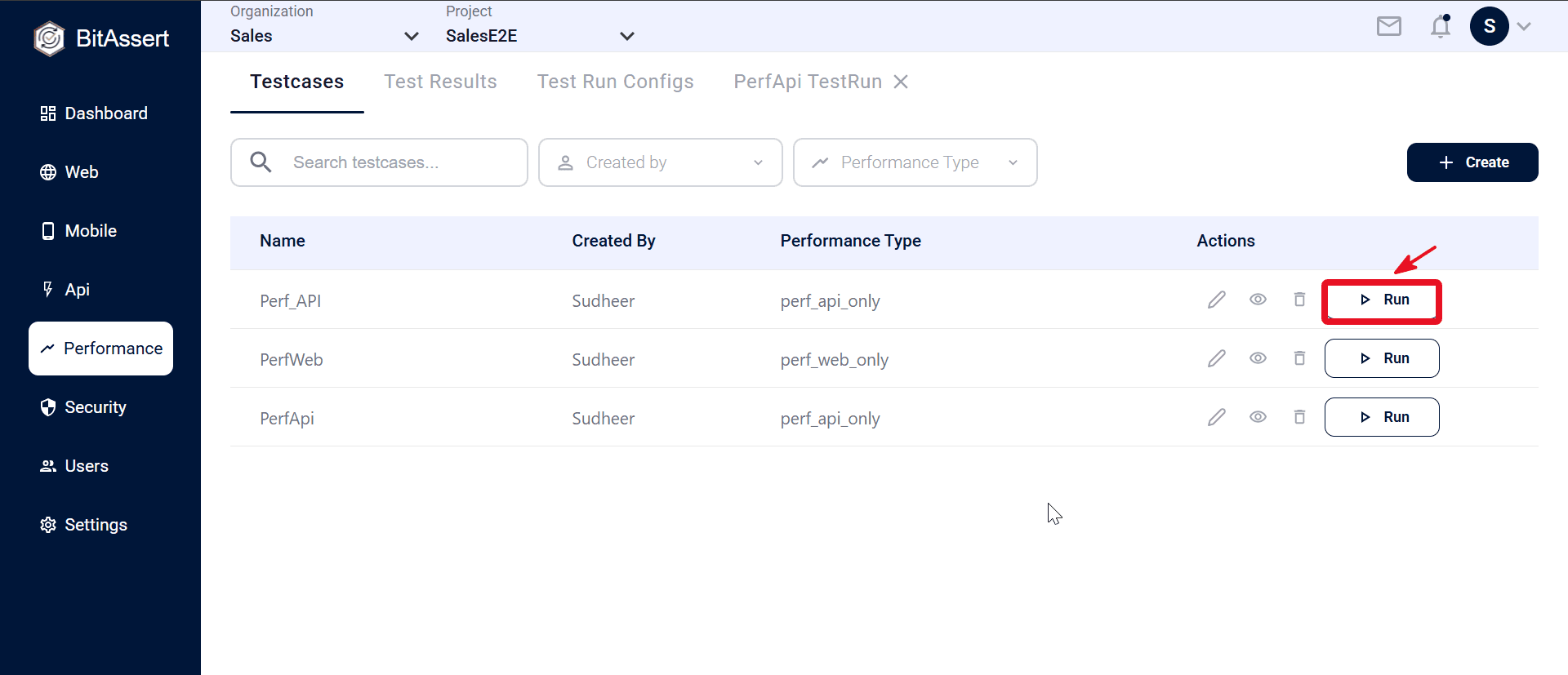
| Testcases list | Run on a row |
| Performance → Test Results | Re-Run on a completed run |
Run is disabled while creating a new testcase — save it first.
Prerequisites
- A saved performance testcase with load model configured (see ).
- For API load: linked API functional testcase or uploaded JMX (see ).
- For Web load: linked Web functional testcase.
- At least one for your performance type (or create one from the run dialog with + Add Item).
How to run a test
Cloud execution only — use this for all performance runs.
From Testcases list
- Open Performance > Testcases and click Run on a saved testcase row.
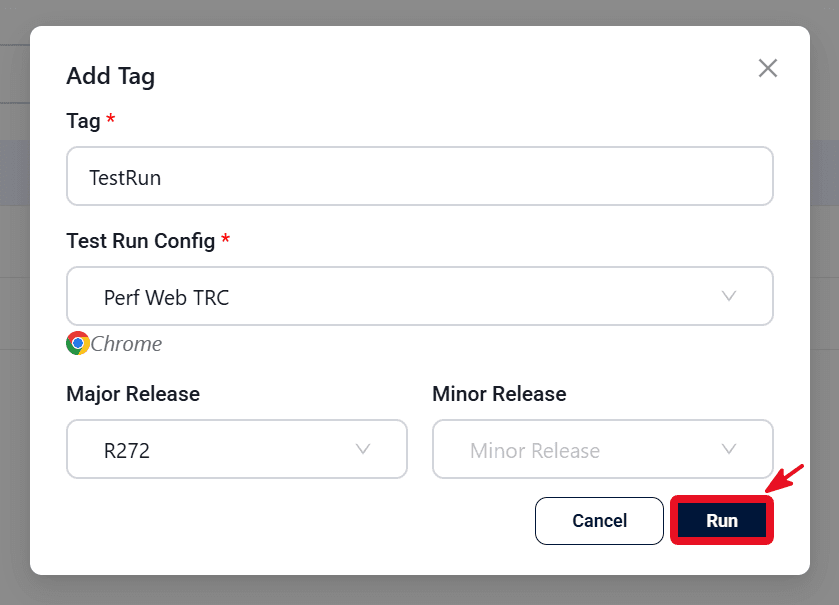
- Enter a Tag (required), select a Test Run Config (required), and optionally choose major/minor release. See .
- Click Run to queue the run on the platform.
From testcase details
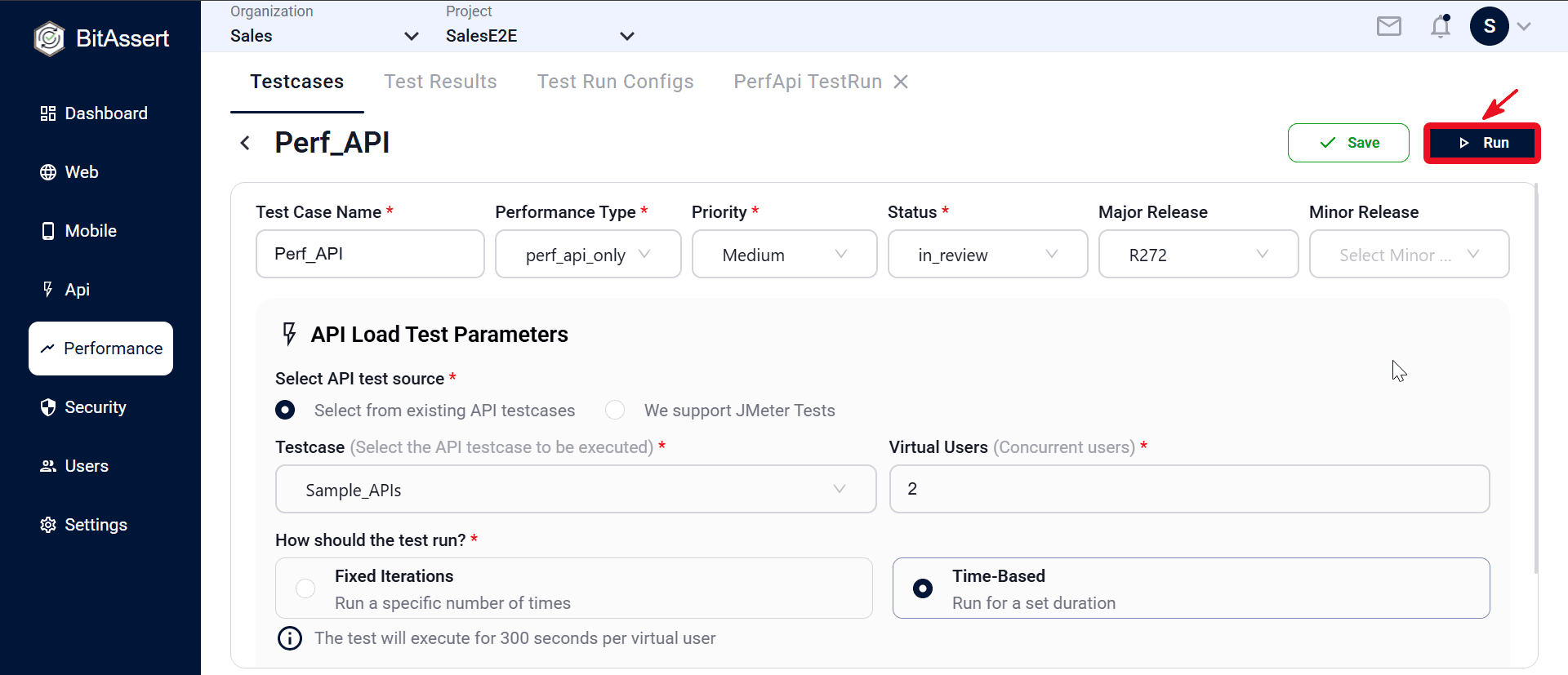
- Open Performance > Testcases and click the testcase Name to open details.
- Save the testcase if you changed load settings — Run is disabled while creating a new testcase or before save.
- Click Run.
- Use the same run dialog — enter Tag, select Test Run Config, and optional release. See .
- Click Run to queue the run on the platform.
From Test Results (Re-Run)
Open a completed run under Performance > Test Results, click Re-Run, enter tag and Test Run Config in the same dialog, then click Save to queue the run.
After the run starts, open to watch live metrics while the run is IN_PROGRESS, then review pass/fail and response times when complete.
Note: Before you run
| Check | Required |
|---|---|
| Performance testcase saved | Yes |
| Load model configured (users, run type, duration/iterations) | Yes |
| API testcase linked or JMX uploaded | For API load |
| Web testcase linked | For Web load |
| Test Run Config selected | Yes |
| Tag entered | Yes |
| Account license/capacity for virtual users | Platform enforces |
- Cloud runs cannot exceed your plan's Max execution time. See .
- If no device or license is available, the run may stay QUEUED until resources free up.
Expected outcome
The performance run is queued on the platform, progresses through QUEUED and IN_PROGRESS, and completes with metrics saved in Test Results. You can Stop or Cancel as needed, Re-Run from a result, and Set as Baseline on passed completed runs.