
Troubleshooting
Guides for authoring, running and analysing tests across web automation, API and performance — plus setup, collaboration and release notes.
Common run failures
Most run problems come from a missing prerequisite, the wrong execution mode, or plan limits. Find the symptom below and apply the fix.
General (any run)
AllRun isn't available (view mode)
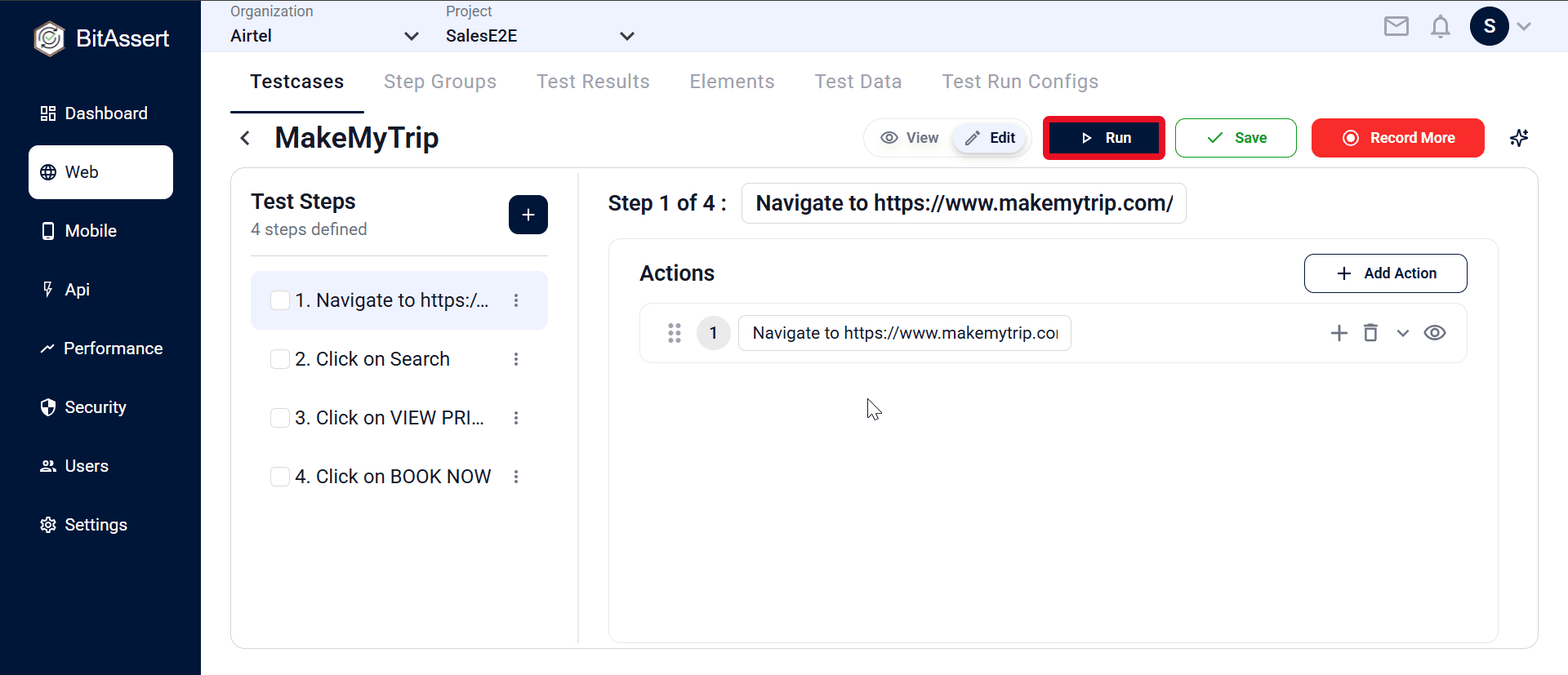
Run isn't a disabled-by-edits action — it's only unavailable in view mode. As a rule, always save your changes before running, and save a brand-new testcase before its first run. Once saved and out of view mode, Run is available from the testcase list and details.
WebRun completes but a step is marked FAILED on an assertion
A run can finish while still failing — a Verify/Assert step did not match the expected value. Open the result, review the step's actual vs. expected output, and confirm the assertion reflects current application behavior before re-running.
WebRun stops at the first failed step; later steps show NOT_EXECUTED
Execution is fail-fast: when a step fails, the run stops and every remaining step is recorded as NOT_EXECUTED — they didn't run, they weren't skipped for another reason. Open the result, fix the first failing step, and re-run to proceed past it.
WebRun fails instantly: "No enabled test-steps found in testcase"
The testcase has no enabled steps — they were all disabled, or none were added. Add or re-enable the steps you want to run, then execute again. (The same applies to a step with no enabled actions: "No enabled actions found in this test-step.")
Cloud runs
CloudRun started but no result appears
A run was triggered but nothing shows up. Confirm you are in the correct project context, then refresh the Test Results page — the entry should appear with its current status.
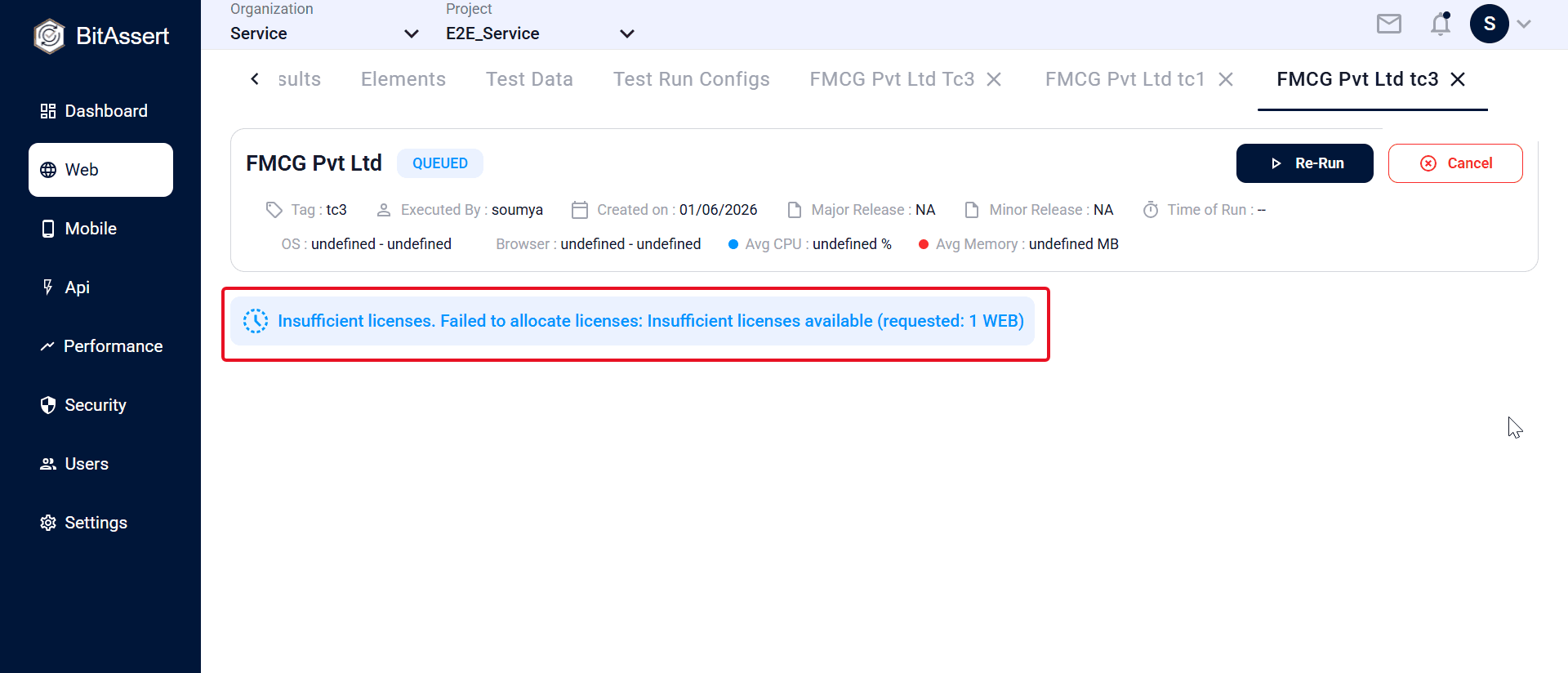
CloudRun stays QUEUED
The run is accepted but does not start. Cloud capacity or licenses are busy, or the requested Virtual Users exceed your plan limit. Wait for resources to free up, or reduce the load.
CloudRun stopped at the time limit
Execution halted before finishing because it exceeded the Max execution time for your plan. Shorten the load model or duration, or upgrade your plan.
CloudRun ends as ABORTED
An ABORTED run was halted before completing — typically because it was stopped, or it exceeded the maximum execution time/limits for your plan. Shorten the load model or duration, or upgrade your plan, then re-run.
CloudRun ends as INTERRUPTED
An INTERRUPTED run stopped due to an infrastructure interruption rather than your test. Simply trigger the run again; if it recurs, contact support with the run tag.
CloudStop or Cancel doesn't take effect instantly
Stop and Cancel are graceful. A stopping run passes through the STOPPING state before reaching its final status, and a queued run shows "will be cancelled soon." Allow it to wind down rather than re-issuing the action.
Cloud"Failed to execute testcase" on launch
The platform rejected the run request. The message usually states the reason — an exhausted plan/license, an invalid configuration, or a missing prerequisite. Resolve the reported issue, then trigger the run again.
Local Agent runs
Local AgentRun fails with a local agent error
A local run ends immediately with an agent error. Start the Local Agent on your machine and confirm it is connected before running locally.
Local AgentLocal Agent run not in Test Results
A local run completed but is not listed. This is expected — local runs are not saved to the platform. Use Cloud execution when you need saved history.
Local AgentA second local run is rejected while one is in progress
The Local Agent executes one run or recording at a time. If a run is already active, new requests are refused until it finishes. Wait for the current run to complete (or stop it), then start the next one. For concurrent execution, use Cloud runs.
Local AgentBrowser session fails to start (version mismatch)
Local web runs launch a real Chrome browser. If Chrome is missing, or its version no longer matches the bundled driver, the session cannot be created and the run fails before any step executes. Update Chrome to the latest stable version, restart the Local Agent so it resolves a matching driver, and run again.
For run limits, see ; for execution modes, see .
Still stuck?
Run the , check the , or contact us at bitassert.com/contact.