
Documentation
Project Management
Guides for authoring, running and analysing tests across web automation, API and performance — plus setup, collaboration and release notes.
Team Management
When creating a project, add organization users to the project team and assign project-level permissions so the right people can access project-scoped work.
Note:
To add someone to a project, they must already be an accepted member of the organization (see ).
Create project and assign team
- On the Projects page, click Create (or follow for the full first-time flow).
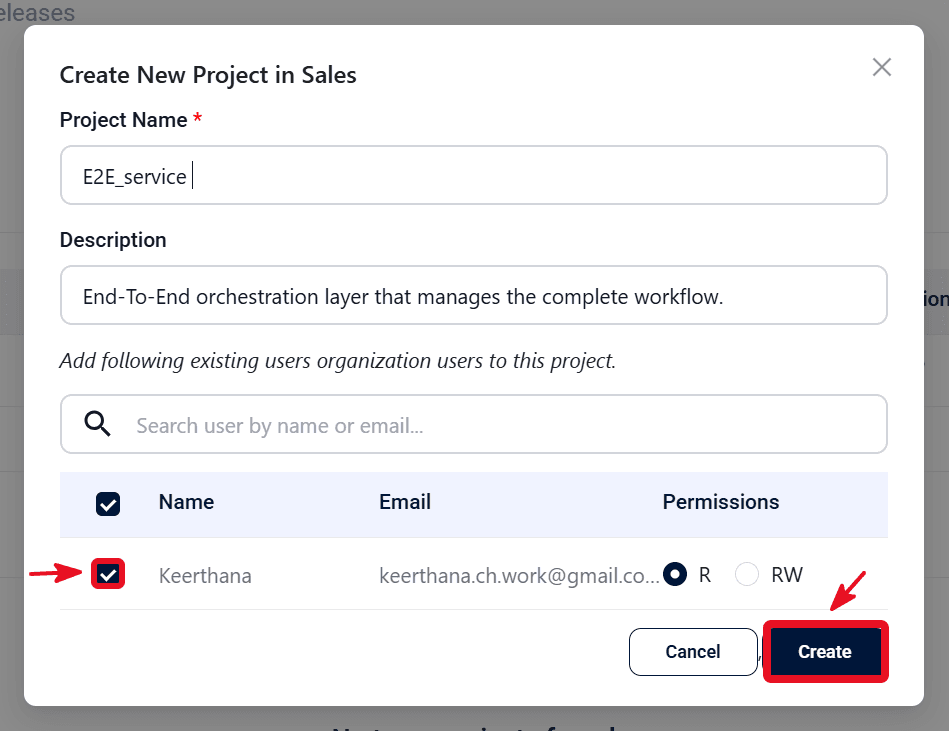
- In the Create New Project dialog, enter Project Name and Description.
- Add existing organization users to the project: use Search user by name or email, select users, and set Permissions for each (Read Only or Read/Write).
- Click Create to save the project and team assignments (enabled after required fields are filled).
- Confirm the new project appears under My Projects and switch to it using the Project dropdown.
Expected outcome
The project is created with the selected users and permissions, and the project is ready for scoped testing work. For how invited users see shared projects, see .