
Project Management
Guides for authoring, running and analysing tests across web automation, API and performance — plus setup, collaboration and release notes.
Member Access
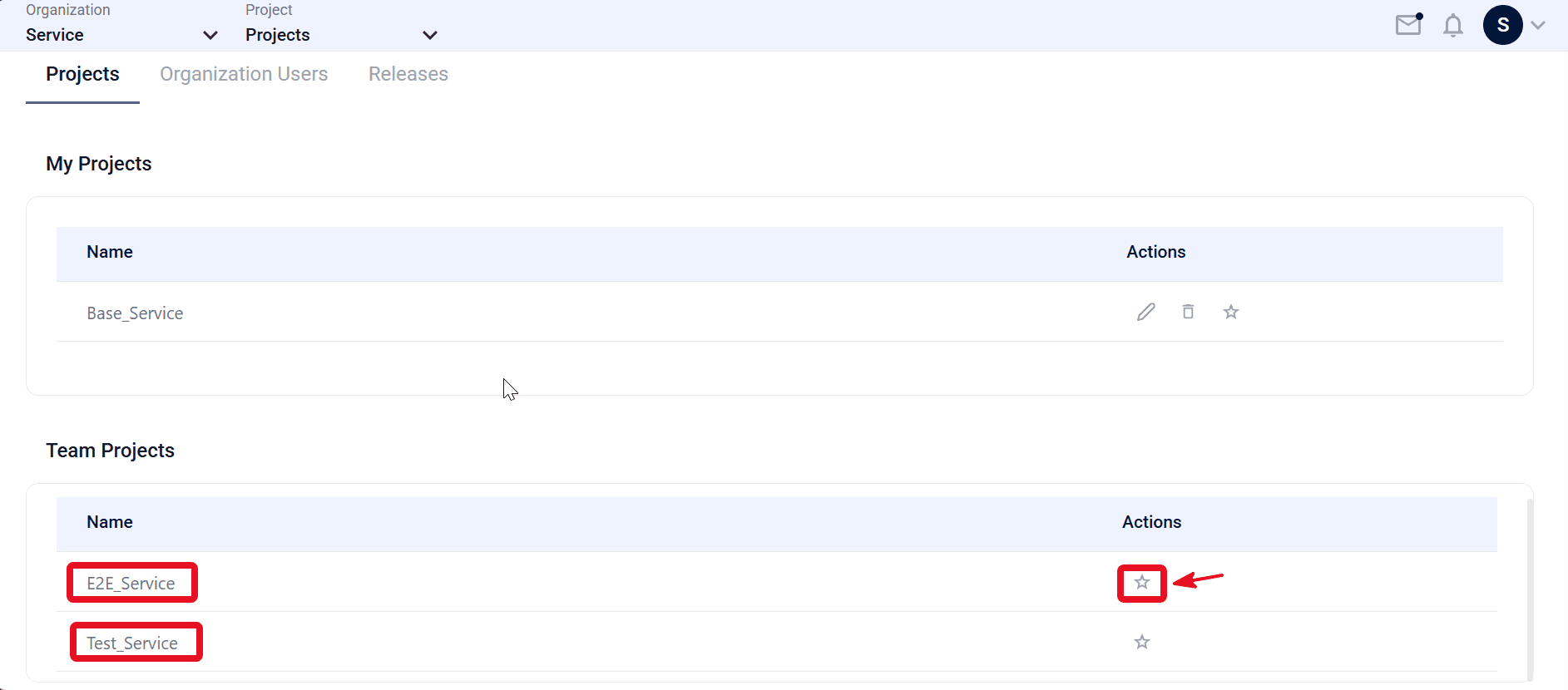
Member Access is how project members reach the projects they belong to within an organization. Projects you created or own are listed under My Projects, while projects shared with you by others appear under Team Projects, each opened according to the permission level assigned to you.
Prerequisites
- You are signed in with the account that was added to the project.
- You are an active member of the organization.
- A project owner or administrator assigned you to the project (see ).
View shared projects
- Open the Organization dropdown, select the correct organization, and then open the Projects tab.
- Under Team Projects, review projects you were added to (for example, E2E_Service or Test_Service).
- Click the Favorite (star) for a project in My Projects or Team Projects. When the star is selected, that project is updated as your default project.
- Open the Project dropdown and select a team project to switch context.
- Open Web, API, or Performance and confirm the organization and project match the project you selected.
Note:
Team Projects lists only projects you were added to.
Expected outcome
Assigned projects appear under Team Projects, you can switch to them from the Project dropdown, and you can use project-scoped modules within your permission level. A favorited project is remembered as your default project when you return to the organization.